[Commercial DT/AIO/MiniPC] How to enable Wake on LAN (WOL) feature

Update : 2025/11/03 17:26

[Commercial DT/AIO/MiniPC] How to enable Wake on LAN (WOL) feature

The Wake on LAN feature lets you wake the system up from sleep or hibernate mode through the network. This article describes how to enable the Wake on LAN feature for ASUS commercial desktop, All-in-One PC, or MiniPC.


To use the Wake on LAN feature, you need to adjust the relevant settings of Windows OS and BIOS configuration first. Please follow the steps below:

Step 1: Turn off fast startup
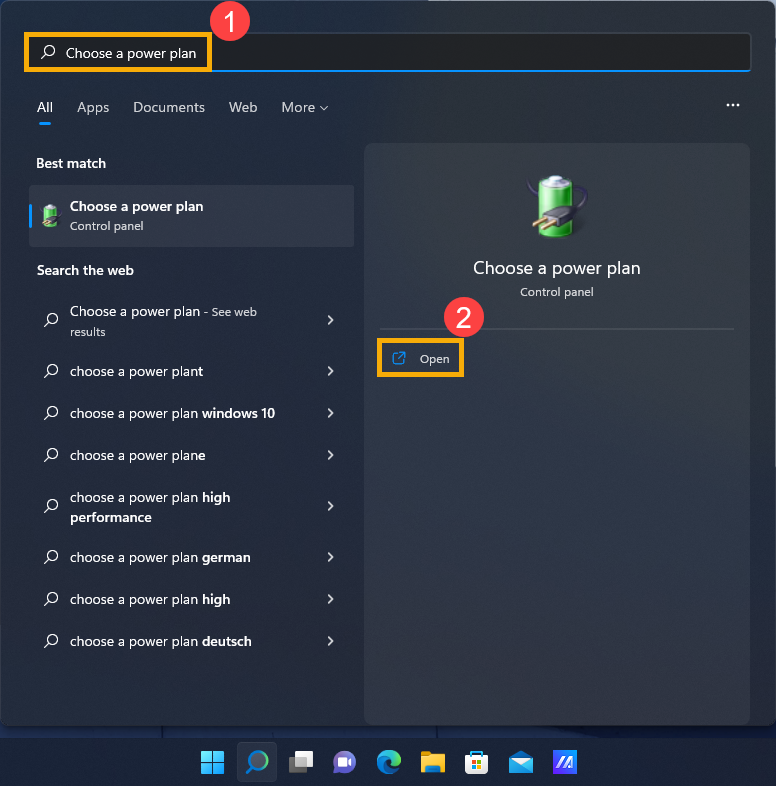
  1. Type and search [Choose a power plan] in the Windows search bar, then click [Open]
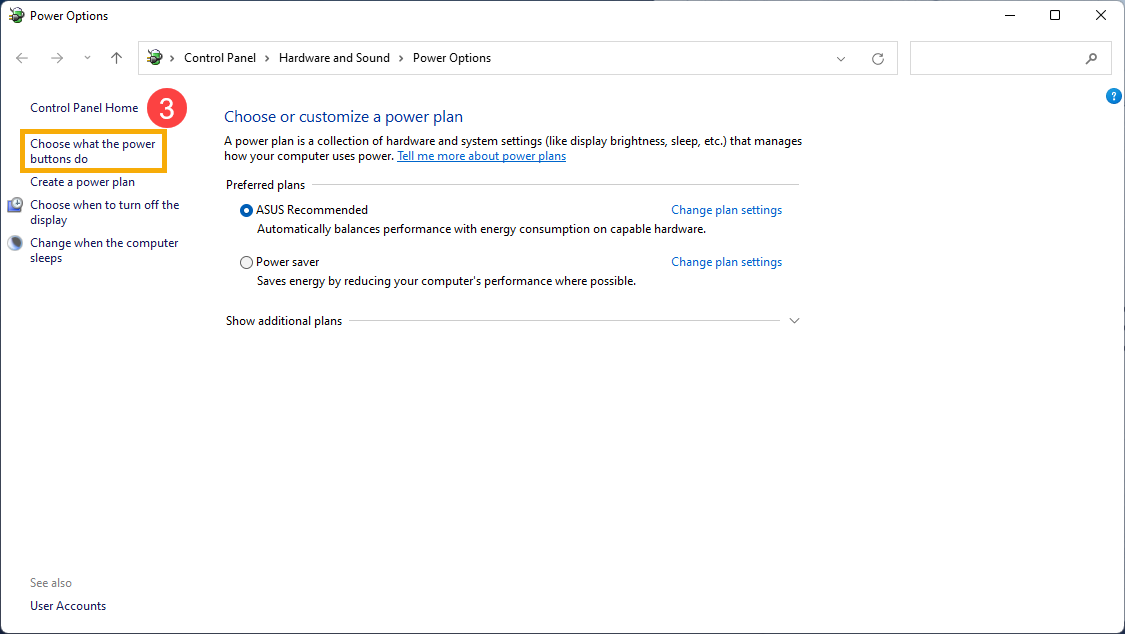
  2. Select [Choose what the power buttons do]
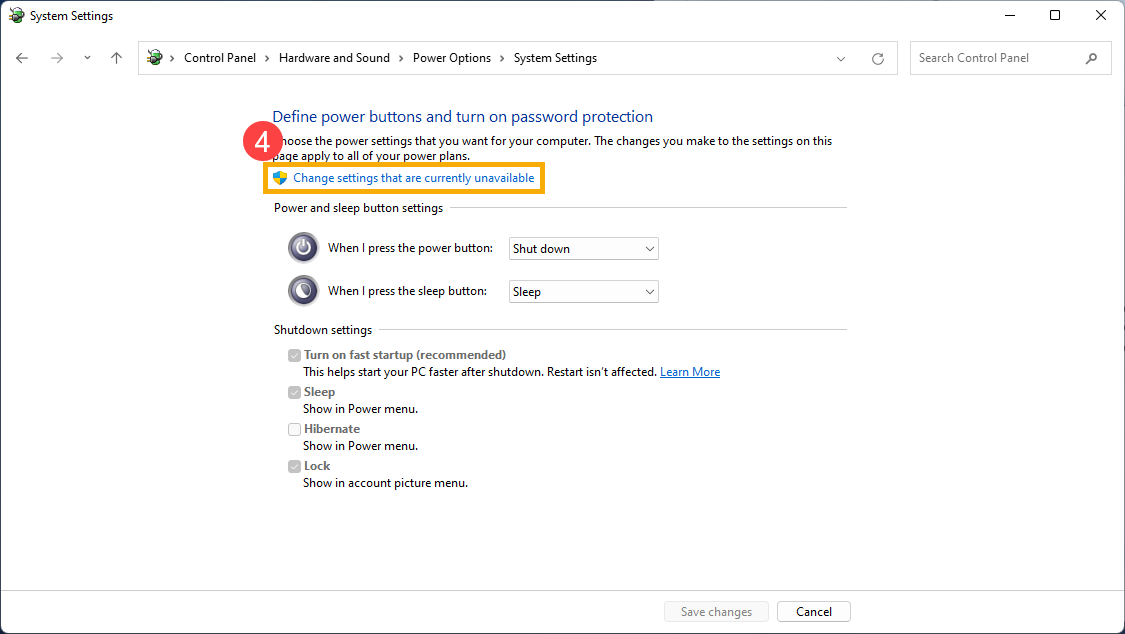
  3. Click [Change settings that are currently unavailable]
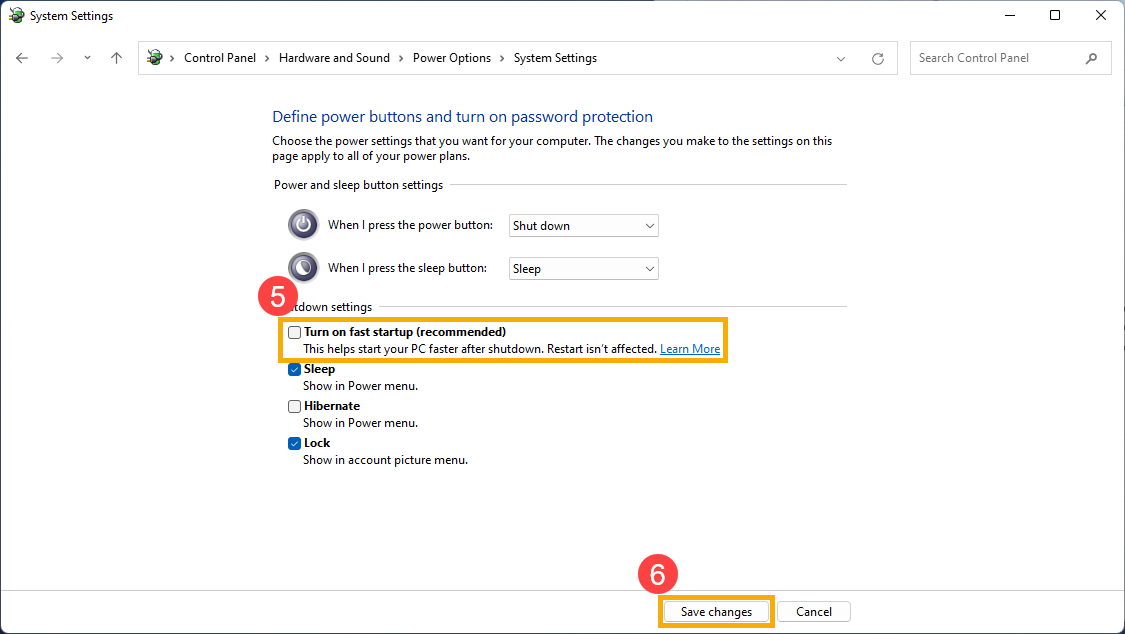
  4. Unselect the checkbox in front of [Turn on fast startup], then select [Save changes]


Step 2: Allow this device to wake the computer from Ethernet Controller Setting
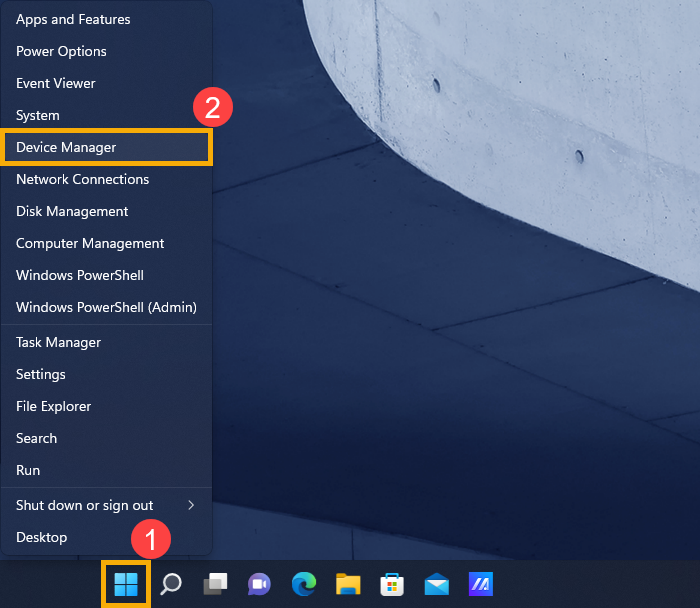
  1. Right-click the [Start] icon on the taskbar, then select [Device Manager]
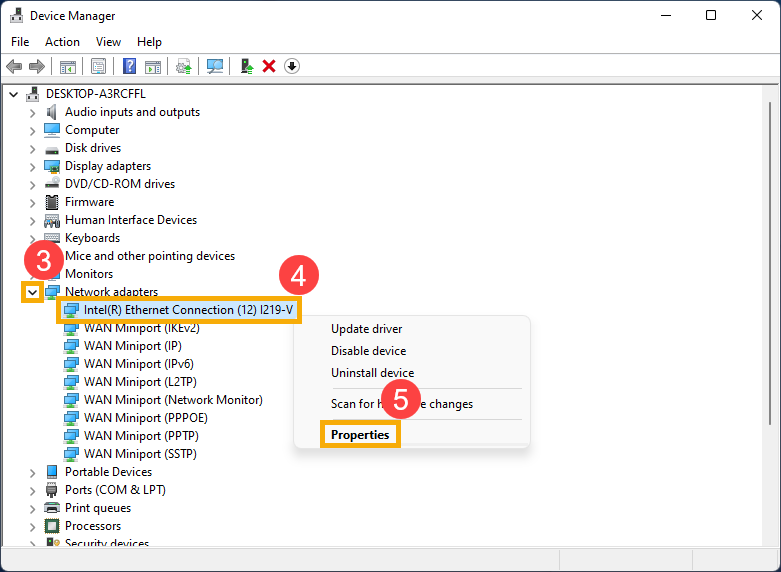
  2. Check the arrow next to [Network adapters], then right-click [Your Ethernet Controller]to select [Properties]
    Note: The Ethernet device name may be different based on different models. 
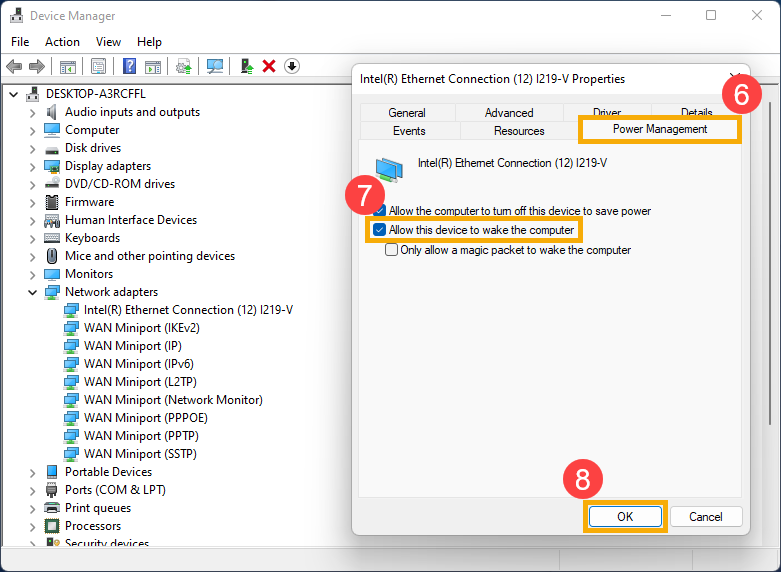
  3. Select the [Power Management] tab, check the box to [Allow this device to wake the computer], and then select [OK]


Step 3: Enable the Wake on LAN feature in BIOS configuration
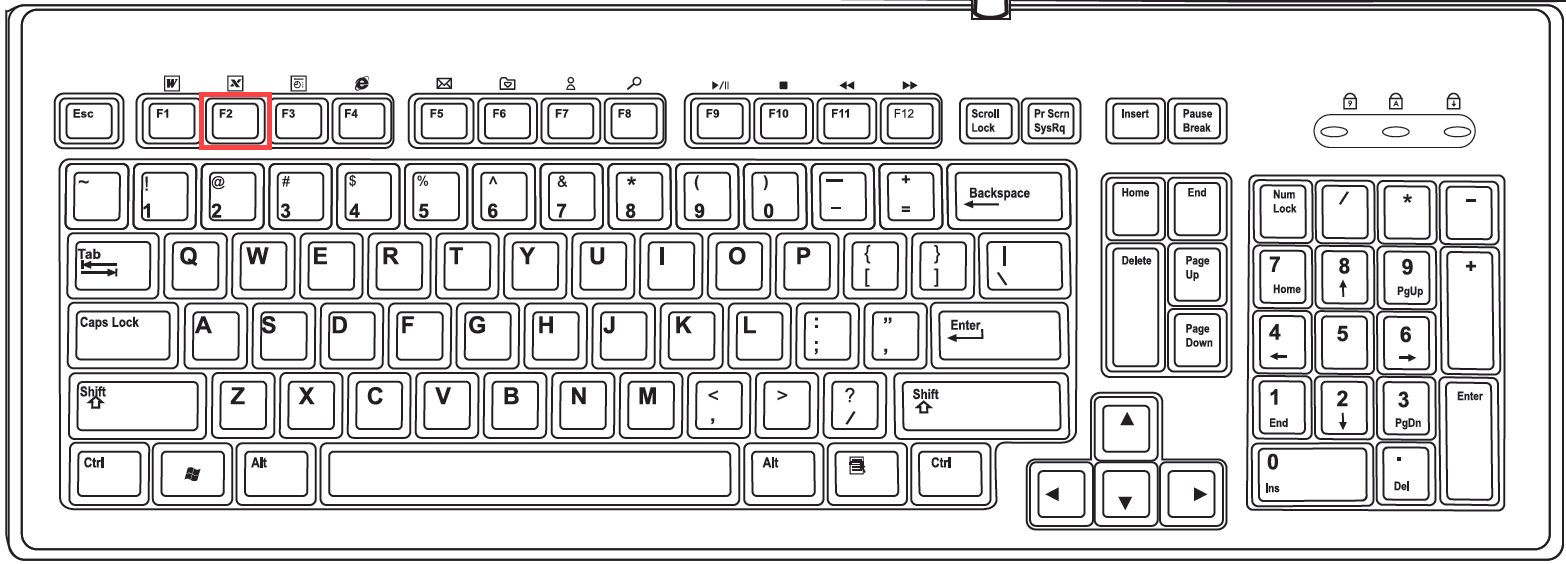
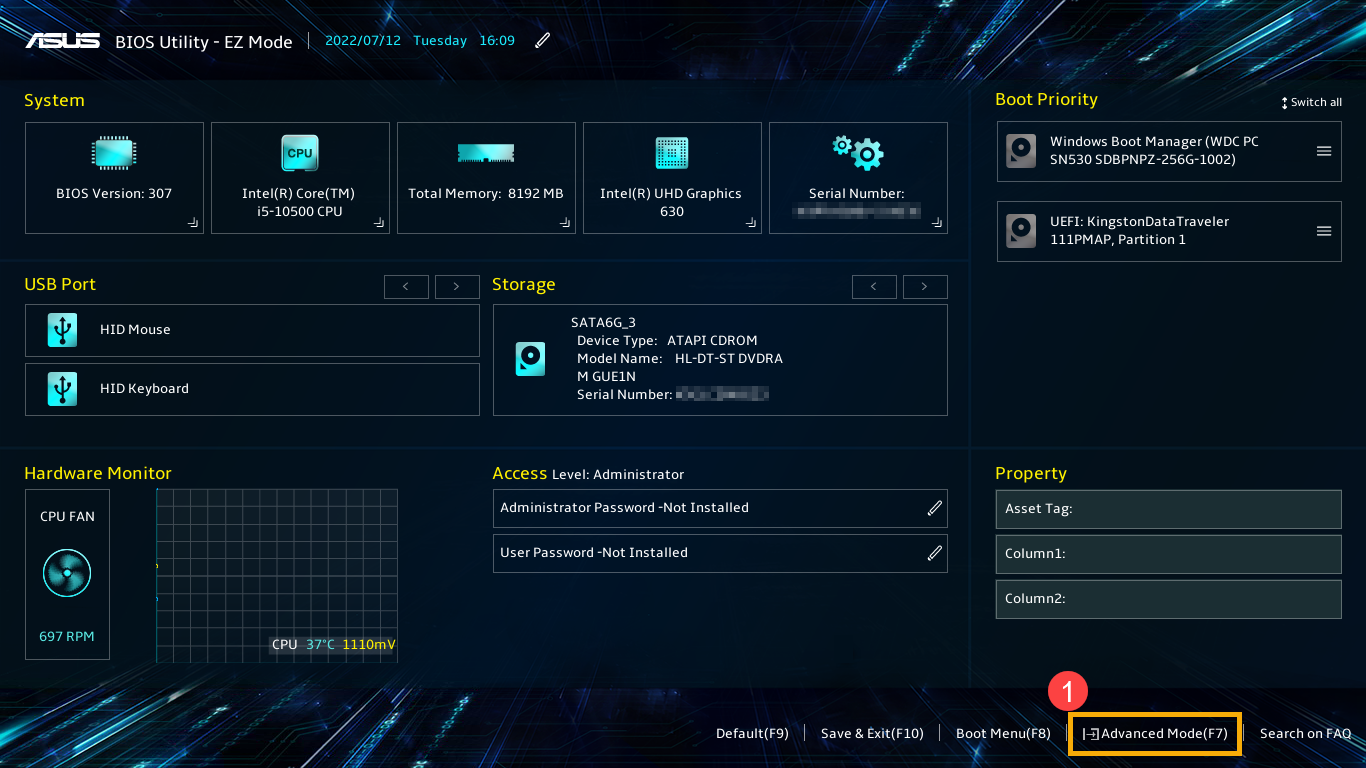
  1. While the computer isn’t powered on yet, press and hold the [F2] key of the keyboard, and then press the [Power button] (Do not release [F2] key until the BIOS configuration display.). Here you can learn more about How to enter BIOS configuration
    Note: For some older desktop models, you may need to press and hold the [Del] key during startup to access the BIOS configuration screen. 
  2. After entering the BIOS Utility, go to the Advanced Mode by pressing Hotkey[F7] or use cursor to click
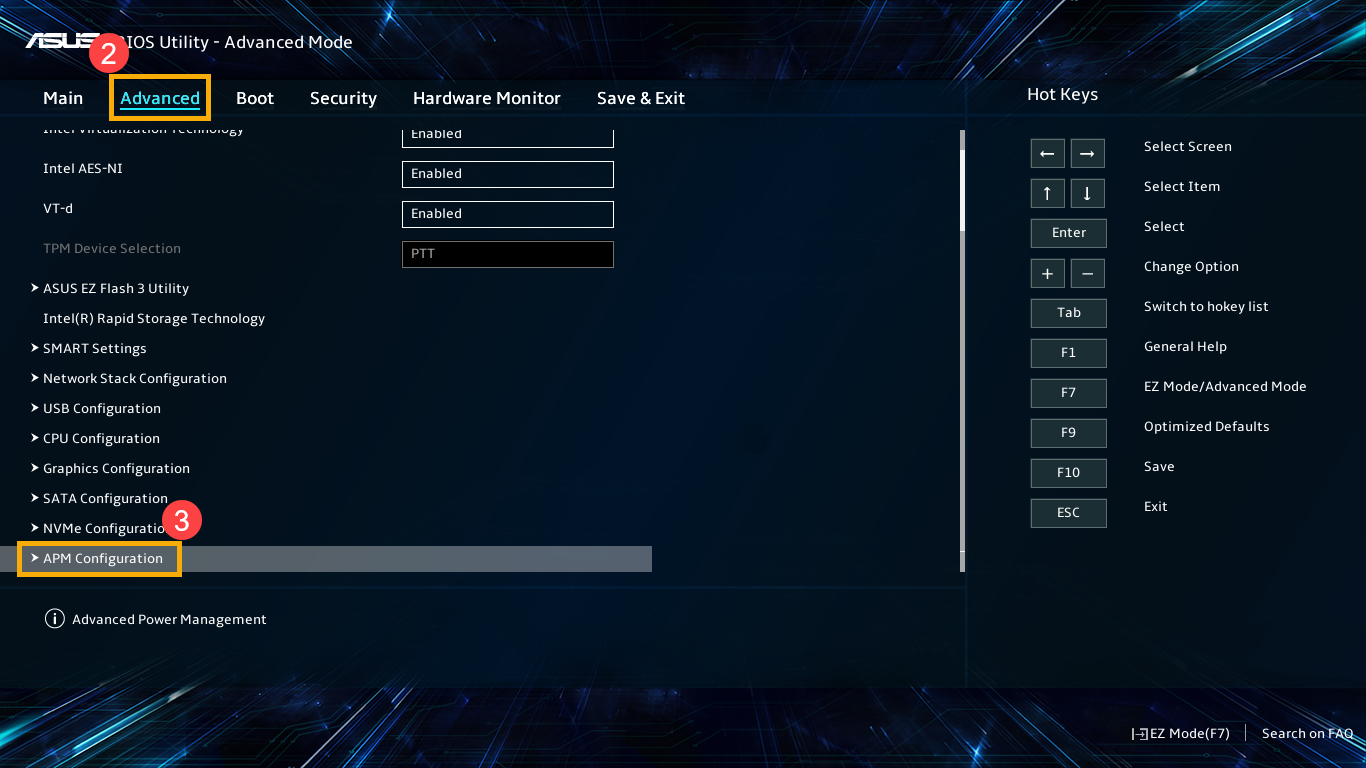
  3. After entering the Advanced Mode, select [Advanced] screen, and then select [APM Configuration]
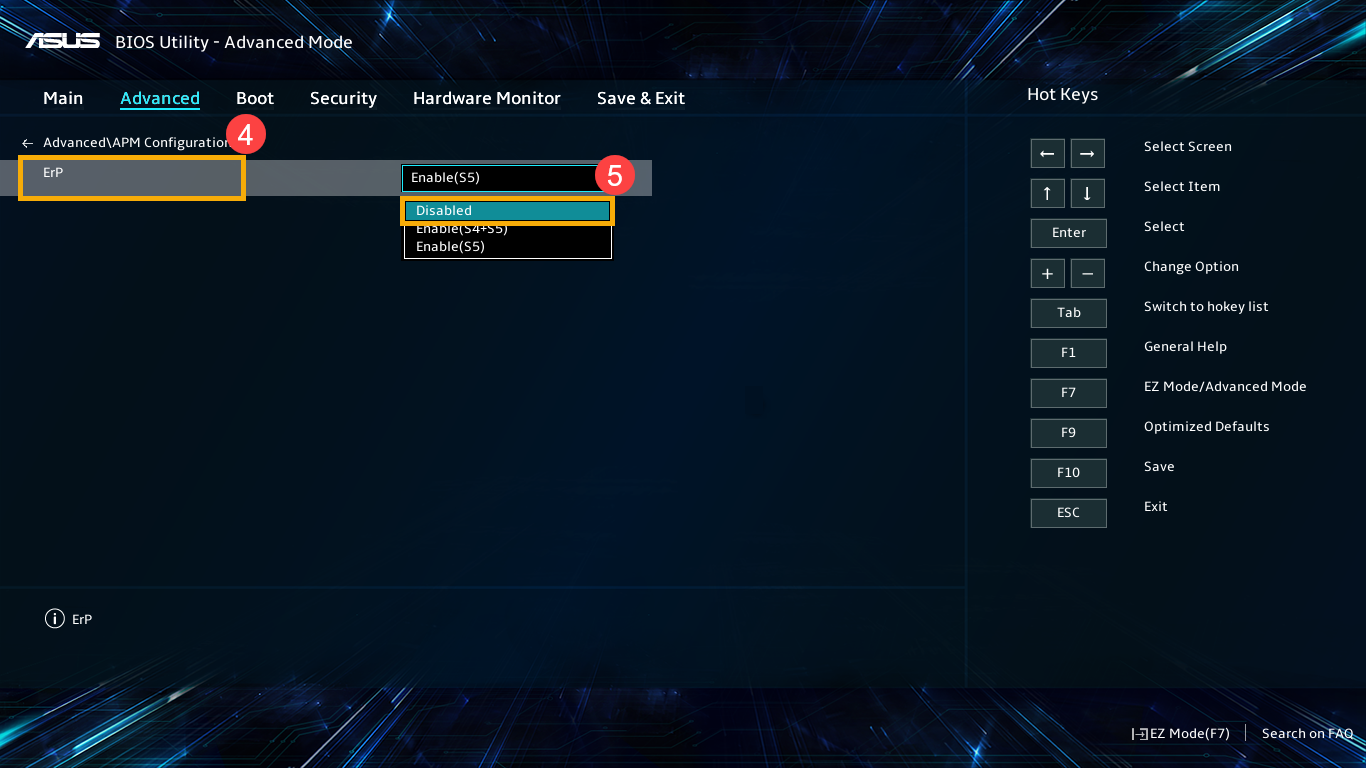
  4. After entering the APM Configuration, select [Erp]and set [Disabled]
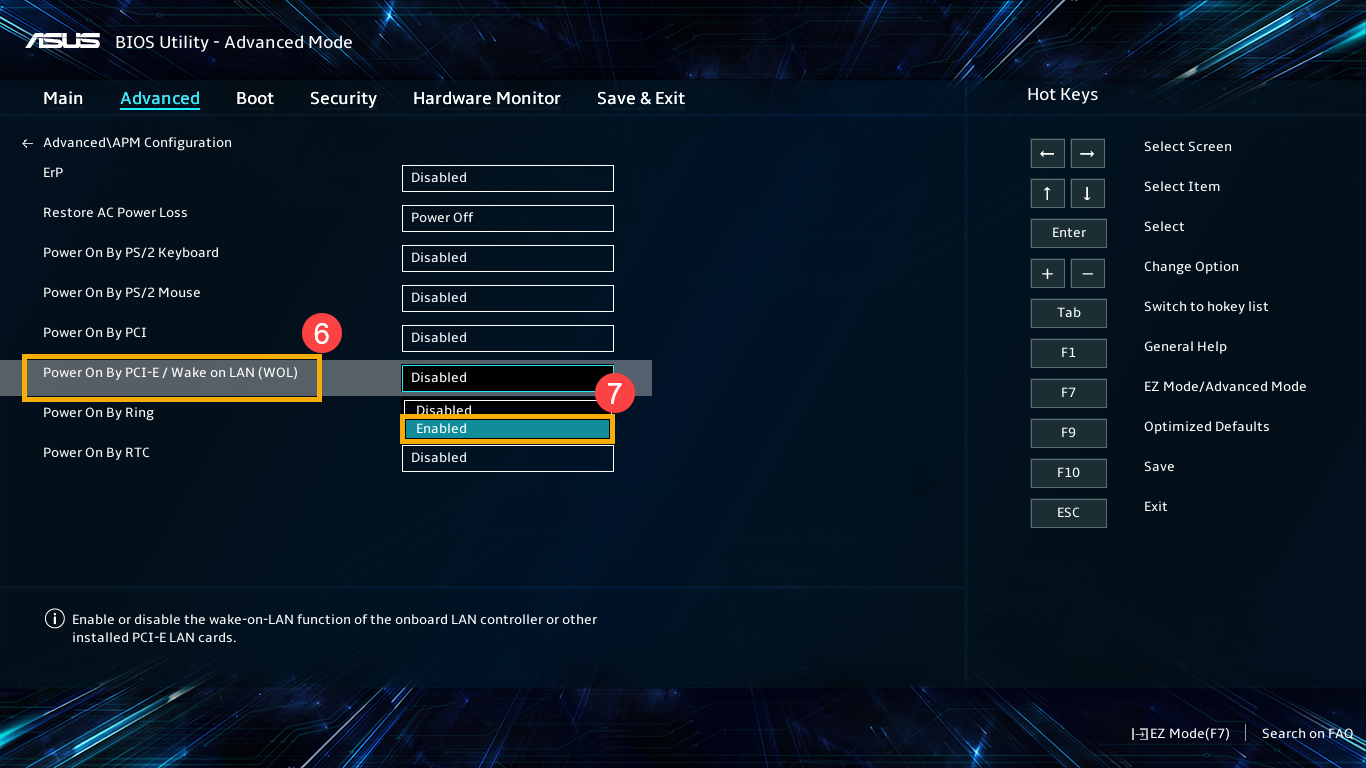
  5. Select [Power On By PCI-E]and set [Enabled]
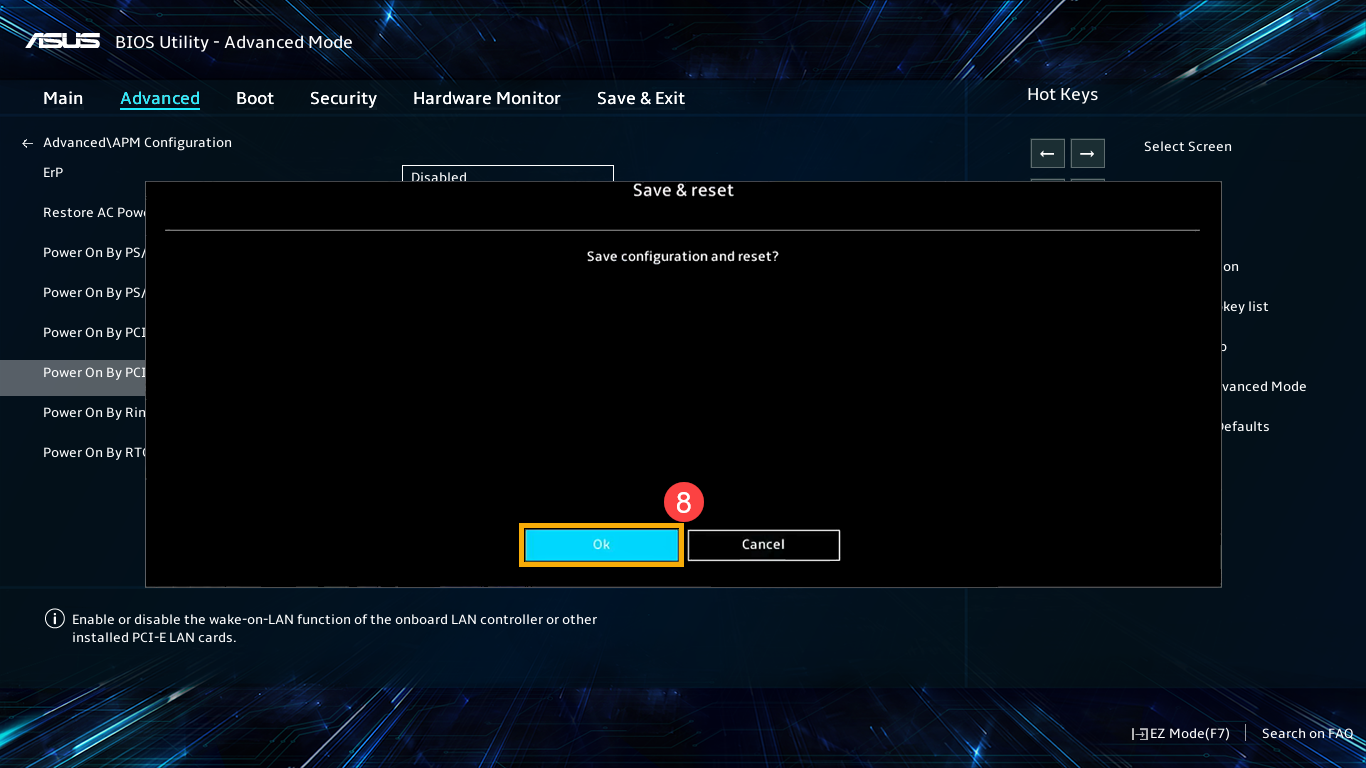
  6. Press Hotkey[F10] and select [Ok]to save & exit setup. 
  7. The computer will auto restart and then enter Windows. Now, you are able to use the Wake on LAN feature.

Notice

Above information might be partly or entirely quoted from exterior websites or sources. please refer to the information based on the source that we noted. Please directly contact or inquire the sources if there is any further question and note that ASUS is neither relevant nor responsible for its content/service.
This information may not suitable for all the products from the same category/series. Some of the screen shots and operations could be different from the software versions.
ASUS provides the above information for reference only. If you have any questions about the content, please contact the above product vendor directly. Please note that ASUS is not responsible for the content or service provided by the above product vendor.