[Windows 11/10] Troubleshooting - Unable to Wake Up from Sleep or Hibernate Mode
Update : 2026/03/20 14:16
[Windows 11/10] Troubleshooting - Unable to Wake Up from Sleep or Hibernate Mode
Applicable Products: Notebook, Desktop, All-in-One PC, Gaming Handheld, Motherboard, Graphics card, LCD Monitor, MiniPC, NUC
If your device fails to wake from sleep mode, it might have automatically transitioned into hibernation mode after being in sleep mode for an extended period. In hibernation mode, the device cannot be awakened via the keyboard; you must press the power button to rouse it.
Note: If you are using a battery-powered device, ensure it is connected to a power source and that the battery charging indicator is illuminated (as exemplified by the laptop in the image below) to avoid failure to wake due to battery depletion. Then, attempt to press the power button to wake the device.
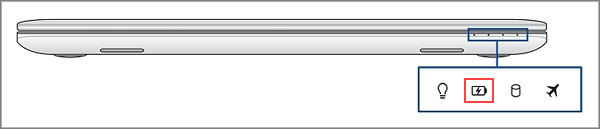
If the device still does not wake, press and hold the power button for 15 seconds to force a shutdown. Afterward, restart the device and follow the troubleshooting steps below to prevent the issue from recurring.
Please go to the corresponding instruction based on the current Windows operating system on your device:
Windows 11 operating system
Table of Contents:
Remove accessories and Update BIOS / Windows packages / drivers to the latest version
- Disconnect all external devices, including the keyboard, mouse, external hard drive, printer, memory cards, CDs in the optical drive, and any adapter cards in card readers. Sometimes, external devices might cause your system to malfunction.
Note: Also, disconnect all external displays. If it's a desktop computer, start with one external display to verify that your computer can boot and display properly. - Regularly updating BIOS, Windows, and drivers can enhance system stability and performance. Ensure that your device is using the latest versions. Learn more about updating BIOS:
How to update the BIOS version in Windows system
How to use EZ Flash to update the BIOS version
(For desktop products, please refer to ASUS Motherboard EZ Flash 3 Introduction.)
Learn more about updating Windows and drivers:
How to execute Windows Update
How to update drivers via System Update in MyASUS
If the problem persists after you have updated BIOS/Windows packages/drivers to the date, please continue to the next chapter for troubleshooting.
System diagnosis for Hardware check
Execute MyASUS system diagnosis for Hardware check, here you can learn more about MyASUS System Diagnosis.
Note: If there is no System Diagnosis tab in MyASUS that means your device does not support this function. Here you can learn more about Why can I only see the partial features in the MyASUS app.
If the problem persists, please continue to the next chapter for troubleshooting.
Restore BIOS settings
The device does not wake from sleep or hibernate mode, which the modified BIOS may cause. Therefore, try to reset BIOS to default settings.
- Access the BIOS setup screen on the device.
When the device is not powered on, press and hold the [F2] key on the keyboard, then press the power button to turn on the device. Keep holding the [F2] key until the BIOS setup screen appears, then release the [F2] key. Learn more about How to enter the BIOS setup screen.
Note: For some older desktop models, you may need to press and hold the [Del] key during startup to access the BIOS configuration screen.
Note: For gaming handhelds, press and hold the [Volume Down] button and then press the power button. - Once in the BIOS setup screen, please refer to the article: How to restore BIOS settings.
- If the problem persists, please continue the next troubleshooting step If the problem persists, please continue to the next chapter for troubleshooting.
Enable the keyboard to wake the device
- Type and search [Device Manager] in the Windows search bar①, then click [Open]②.
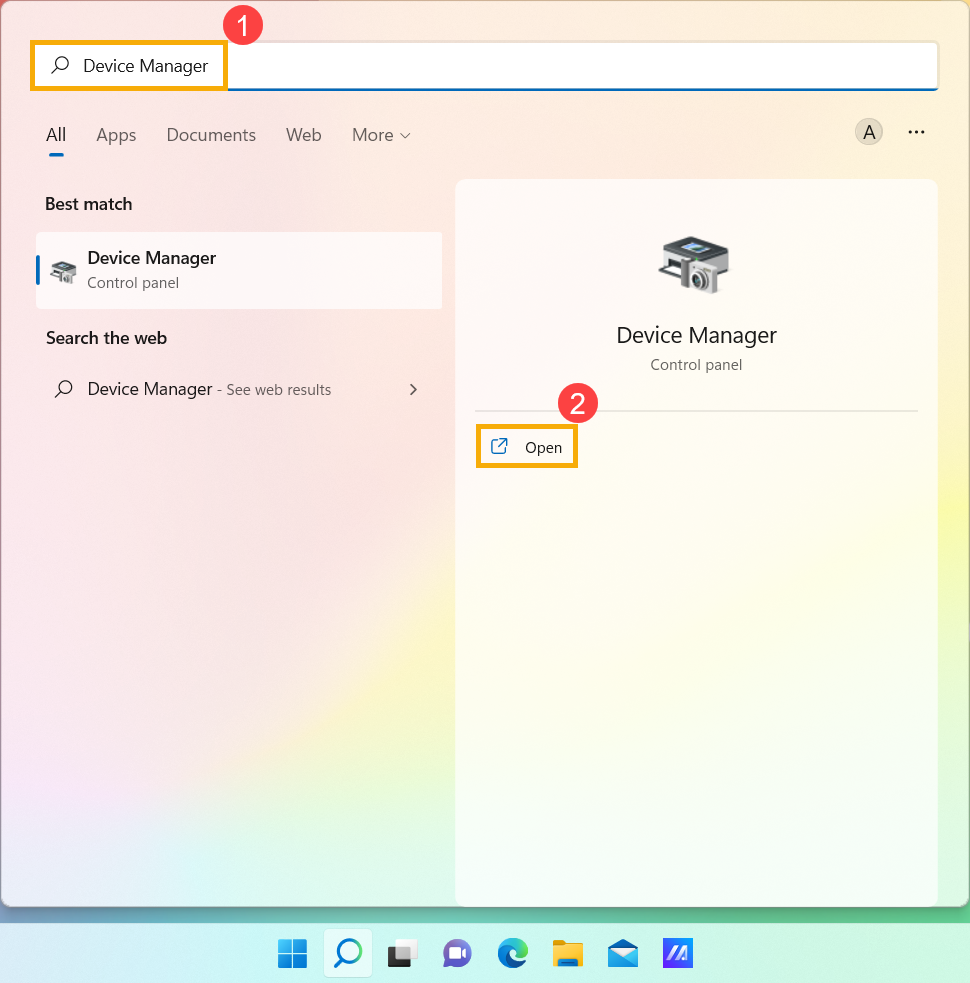
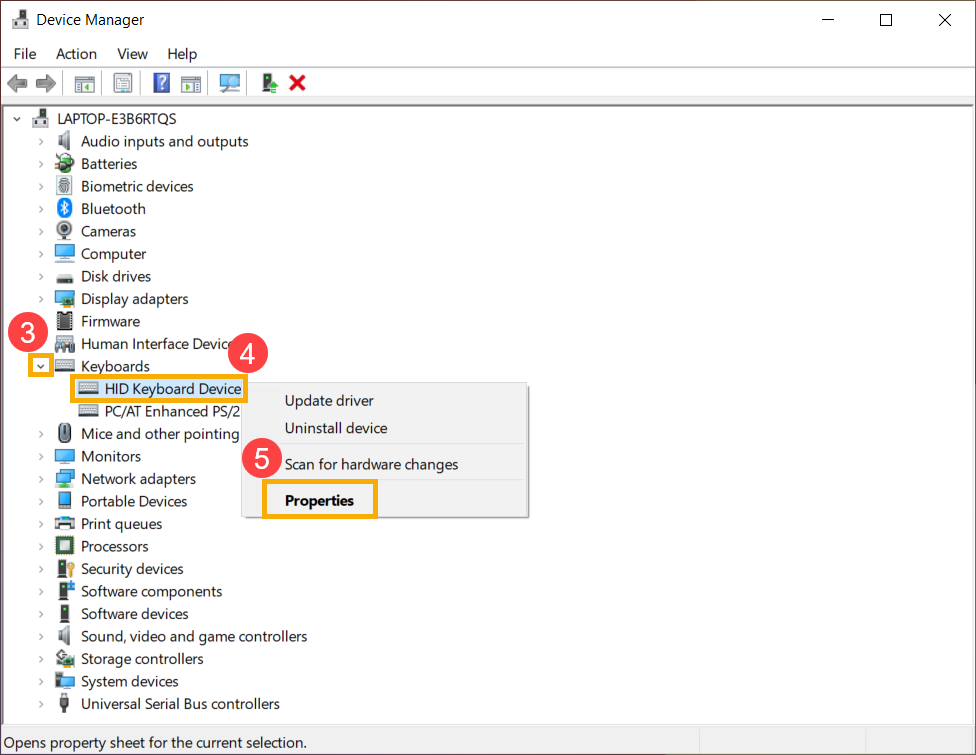
- Check the arrow next to [Keyboards]③, then right-click [HID Keyboard Device]④ and select [Properties]⑤.
Note: The device name may be different based on different models.
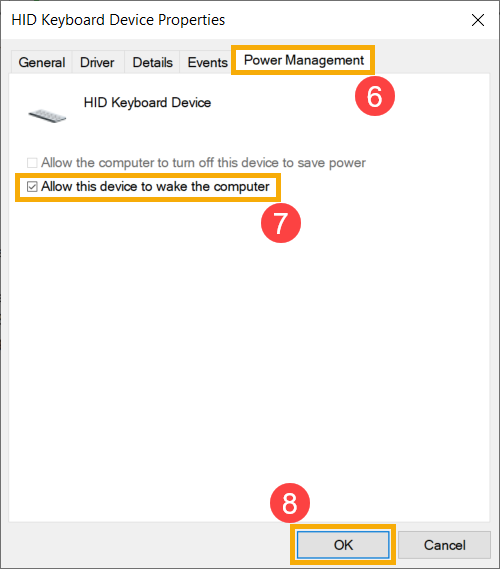
- Select [Power Management] tab⑥, then check the box next to [Allow this device to wake the computer]⑦ and click [OK]⑧.
Note: If there is no Power Management in the Keyboard properties, please ignore this step.
- If the problem persists, please continue to the next chapter for troubleshooting.
Troubleshooting through Windows Power Troubleshooter
Note: Troubleshooter options may vary depending on the Windows version.
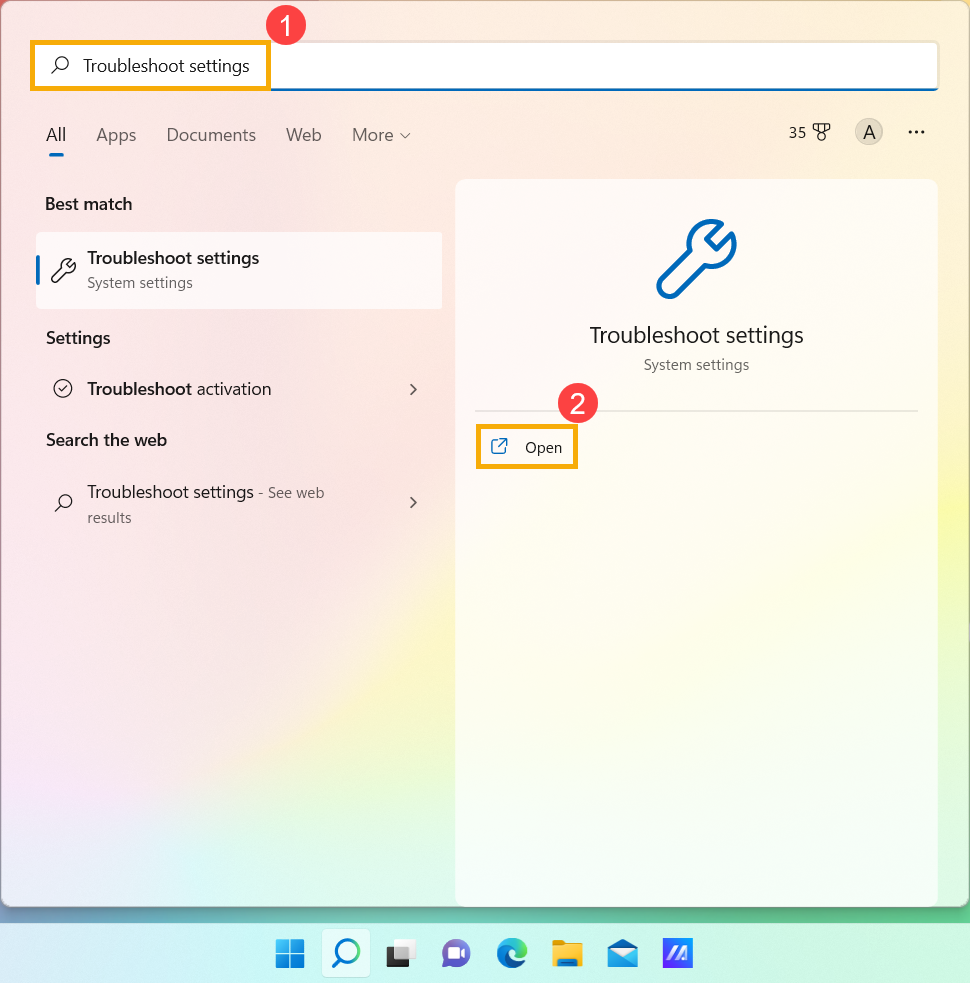
- Type and search [Troubleshoot settings] in the Windows search bar①, then click [Open]②.
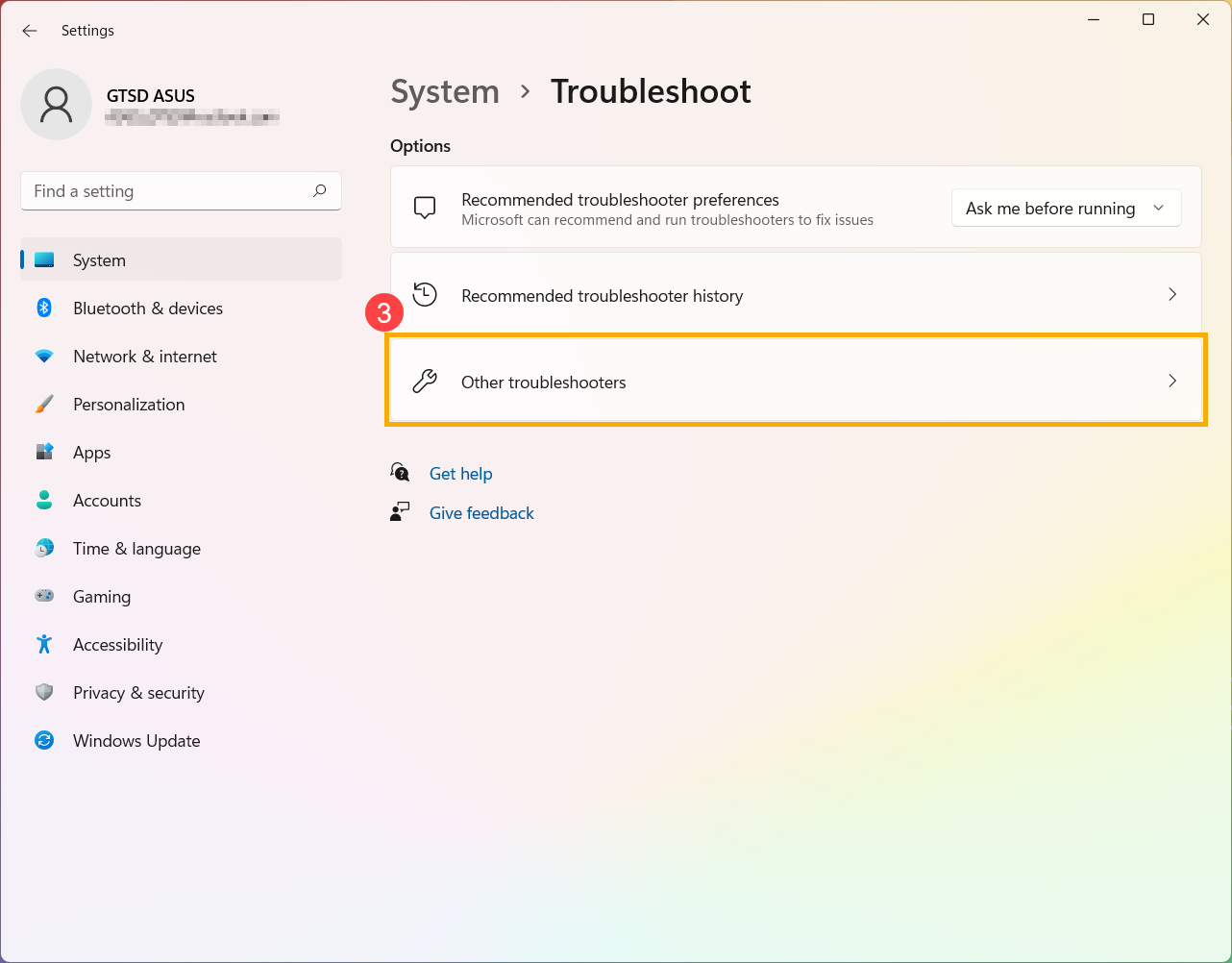
- Select [Other troubleshooters]③.
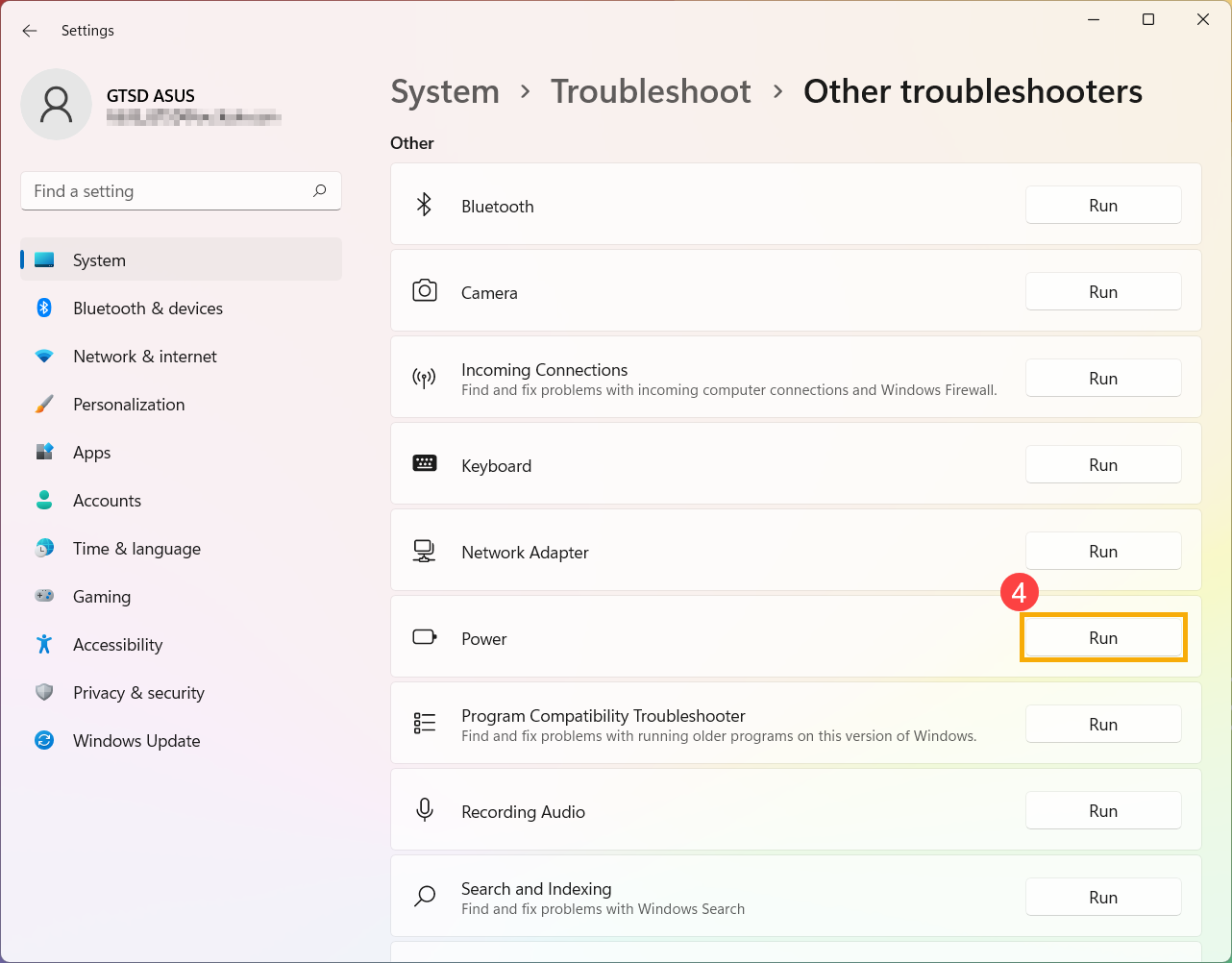
- Click [Run] on the Power option④, then follow the on-screen instructions to complete the troubleshooting process.
- If the problem persists, please continue to the next chapter for troubleshooting.
Re-enabling Hibernate functionality via Command Prompt
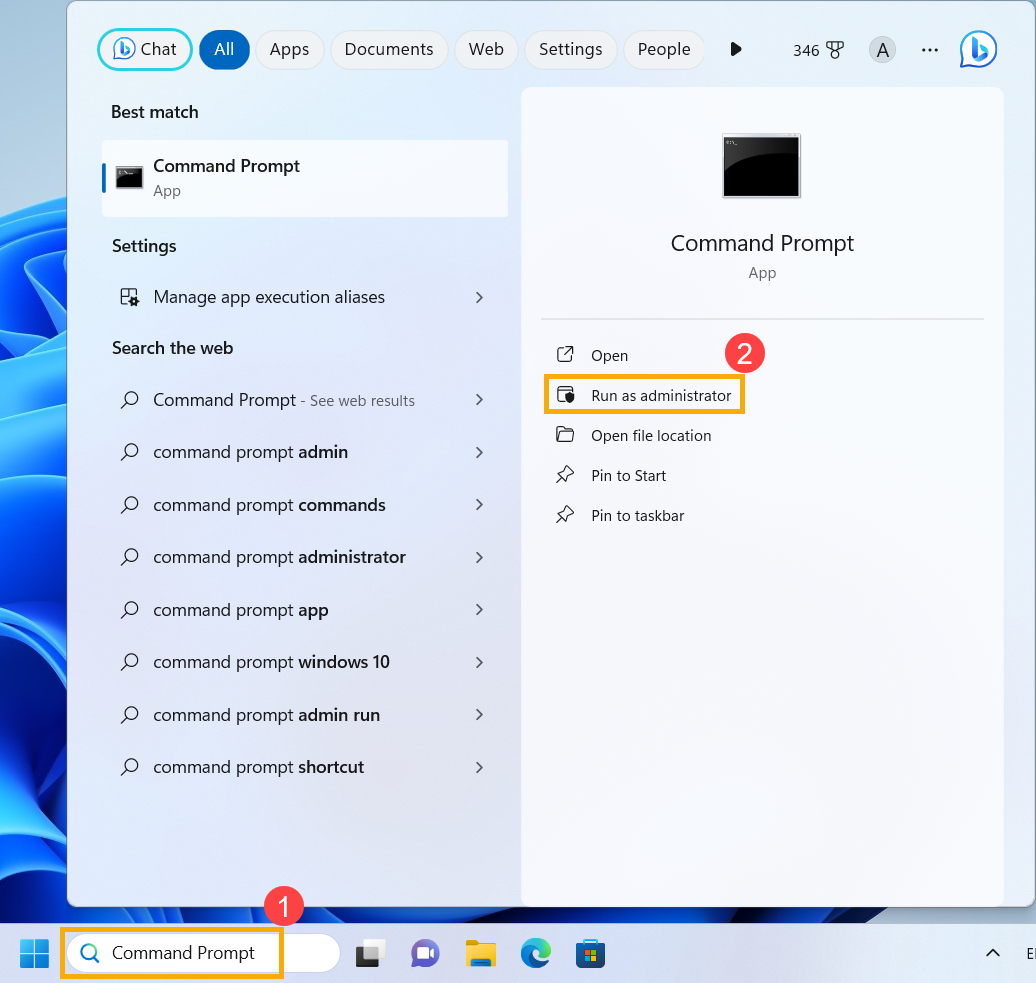
- Type and search [Command Prompt] in the Windows search bar①, then click [Run as administrator]②.
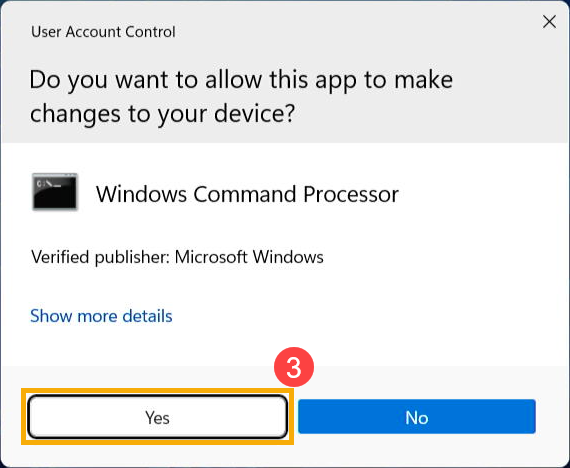
- When the User Account Control prompt appears, select [Yes]③.
- In the Command Prompt, type 「powercfg.exe /hibernate off」④, and then press Enter to disable the hibernate function.
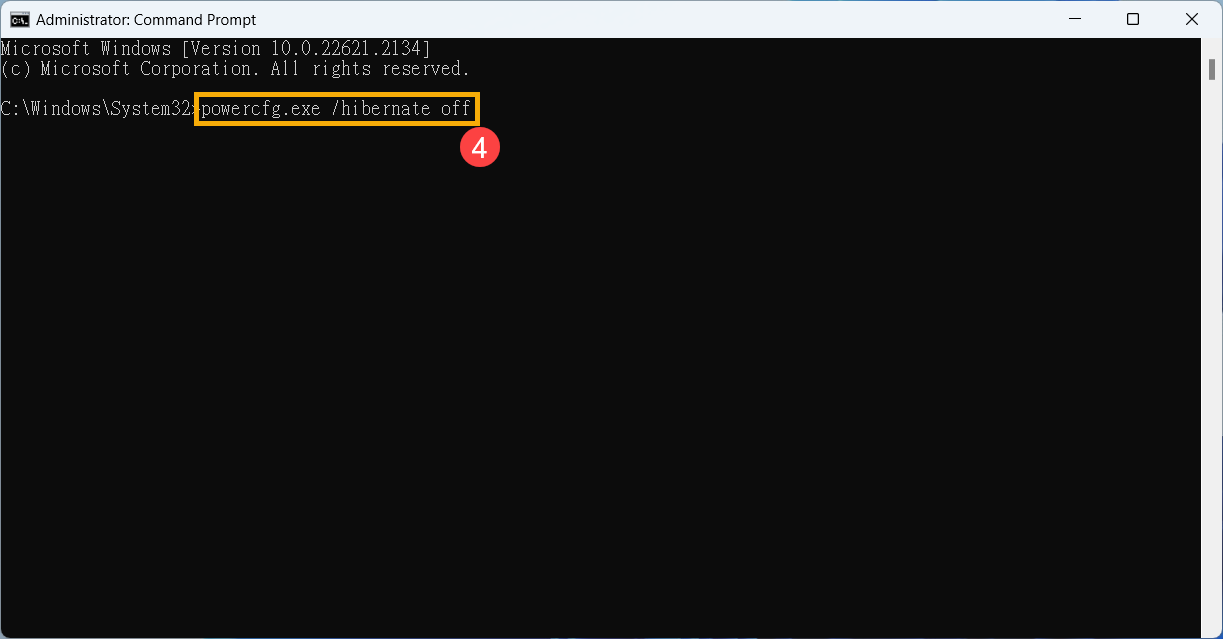
- After disabling hibernate, please restart your device.
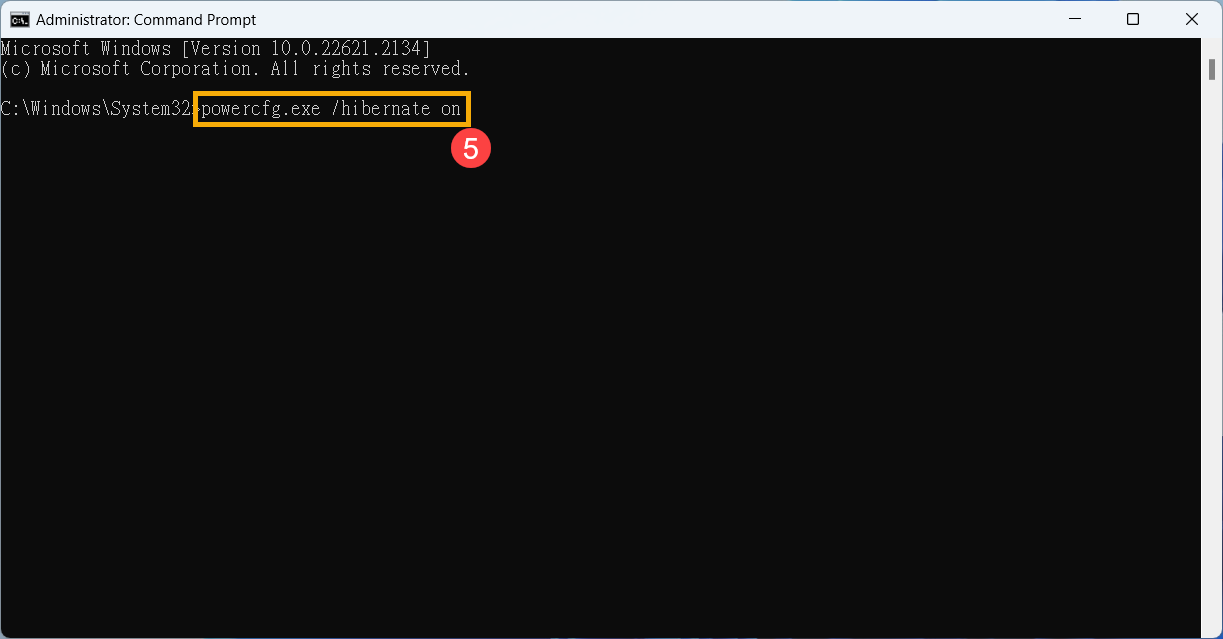
- Open the Command Prompt application again with administrator, and in the Command Prompt window, type “powercfg.exe /hibernate on”⑤, then press Enter to enable hibernation.
- If the issue persists, proceed with the next troubleshooting steps.
Restore the system from restore point
If the problem happens recently, and if you have ever created a restore point or there is an automatic system restore existed, try to restore the device to a point before the problem began to resolve the problem. Here you can learn more about How to use restore point to restore the system.
If the problem persists, please continue to the next chapter for troubleshooting.
Reset the system
If the problem persists after all troubleshooting steps are completed. Please backup your personal files, then reset the device to back to its original configuration. Here you can learn more about How to reset the system.
Windows 10 operating system
Table of Contents:
Remove accessories and Update BIOS / Windows packages / drivers to the latest version
- Disconnect all external devices, including the keyboard, mouse, external hard drive, printer, memory cards, CDs in the optical drive, and any adapter cards in card readers. Sometimes, external devices might cause your system to malfunction.
Note: Also, disconnect all external displays. If it's a desktop computer, start with one external display to verify that your computer can boot and display properly. - Regularly updating BIOS, Windows, and drivers can enhance system stability and performance. Ensure that your device is using the latest versions. Learn more about updating BIOS:
How to update the BIOS version in Windows system
How to use EZ Flash to update the BIOS version
(For desktop products, please refer to ASUS Motherboard EZ Flash 3 Introduction.)
Learn more about updating Windows and drivers:
How to execute Windows Update
How to update drivers via System Update in MyASUS
If the problem persists after you have updated BIOS/Windows packages/drivers to the date, please continue to the next chapter for troubleshooting.
System diagnosis for Hardware check
Execute MyASUS system diagnosis for Hardware check, here you can learn more about MyASUS System Diagnosis.
Note: If there is no System Diagnosis tab in MyASUS that means your device does not support this function. Here you can learn more about Why can I only see the partial features in the MyASUS app.
If the problem persists, please continue to the next chapter for troubleshooting.
Restore BIOS settings
The device does not wake from sleep or hibernate mode, which the modified BIOS may cause. Therefore, try to reset BIOS to default settings.
- Access the BIOS setup screen on the device.
When the device is not powered on, press and hold the [F2] key on the keyboard, then press the power button to turn on the device. Keep holding the [F2] key until the BIOS setup screen appears, then release the [F2] key. Learn more about How to enter the BIOS setup screen.
Note: For some older desktop models, you may need to press and hold the [Del] key during startup to access the BIOS configuration screen.
Note: For gaming handhelds, press and hold the [Volume Down] button and then press the power button. - Once in the BIOS setup screen, please refer to the article: How to restore BIOS settings.
- If the problem persists, please continue the next troubleshooting step If the problem persists, please continue to the next chapter for troubleshooting.
Enable the keyboard to wake the device
- Type and search [Device Manager] in the Windows search bar①, then click [Open]②.
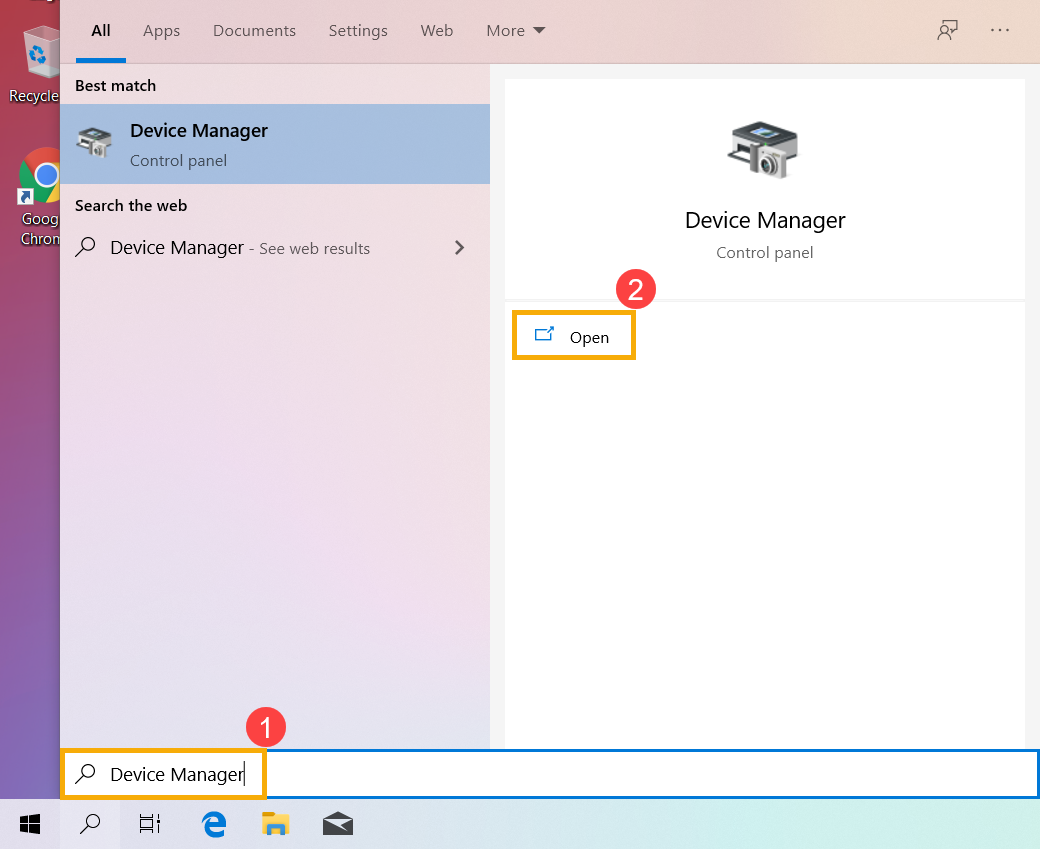
- Check the arrow next to [Keyboards]③, then right-click [HID Keyboard Device]④ and select [Properties]⑤.
Note: The device name may be different based on different models.
- Select [Power Management] tab⑥, then check the box next to [Allow this device to wake the computer]⑦ and click [OK]⑧.
Note: If there is no Power Management in the Keyboard properties, please ignore this step.
- If the problem persists, please continue to the next chapter for troubleshooting.
Troubleshooting through Windows Power Troubleshooter
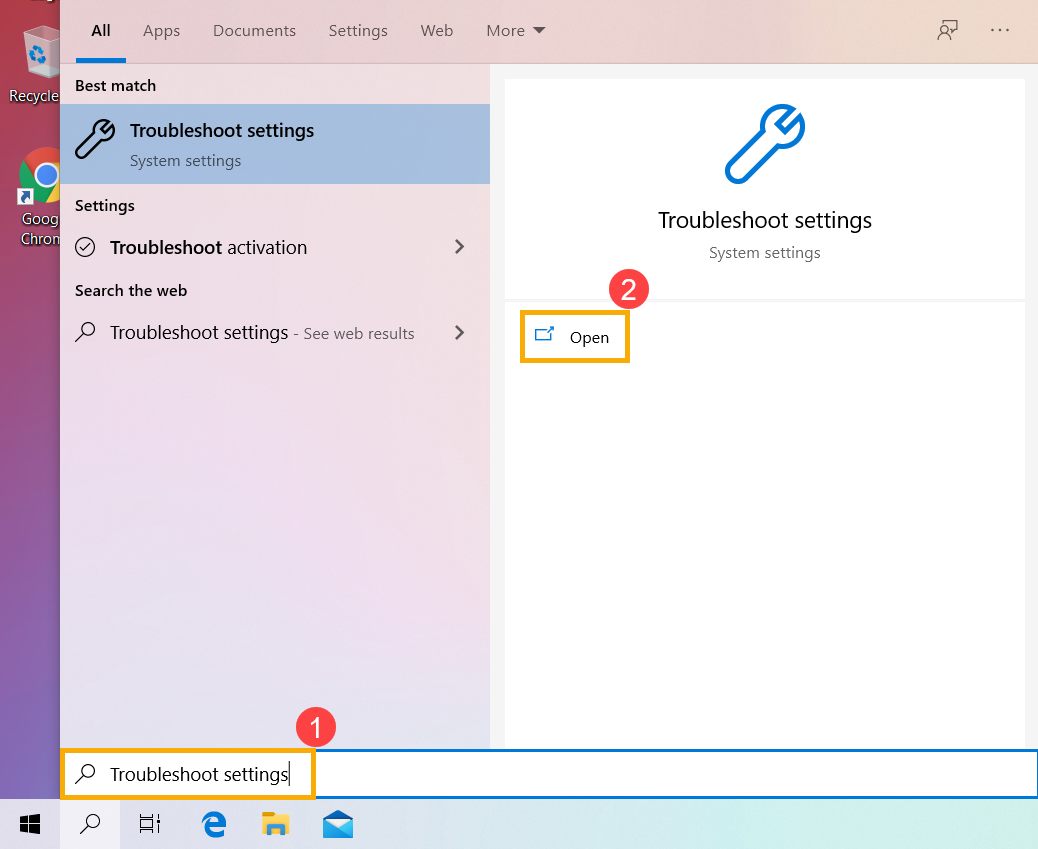
- Type and search [Troubleshoot settings] in the Windows search bar①, then click [Open]②.
- Click [Power]③, then click [Run the troubleshooter]④.
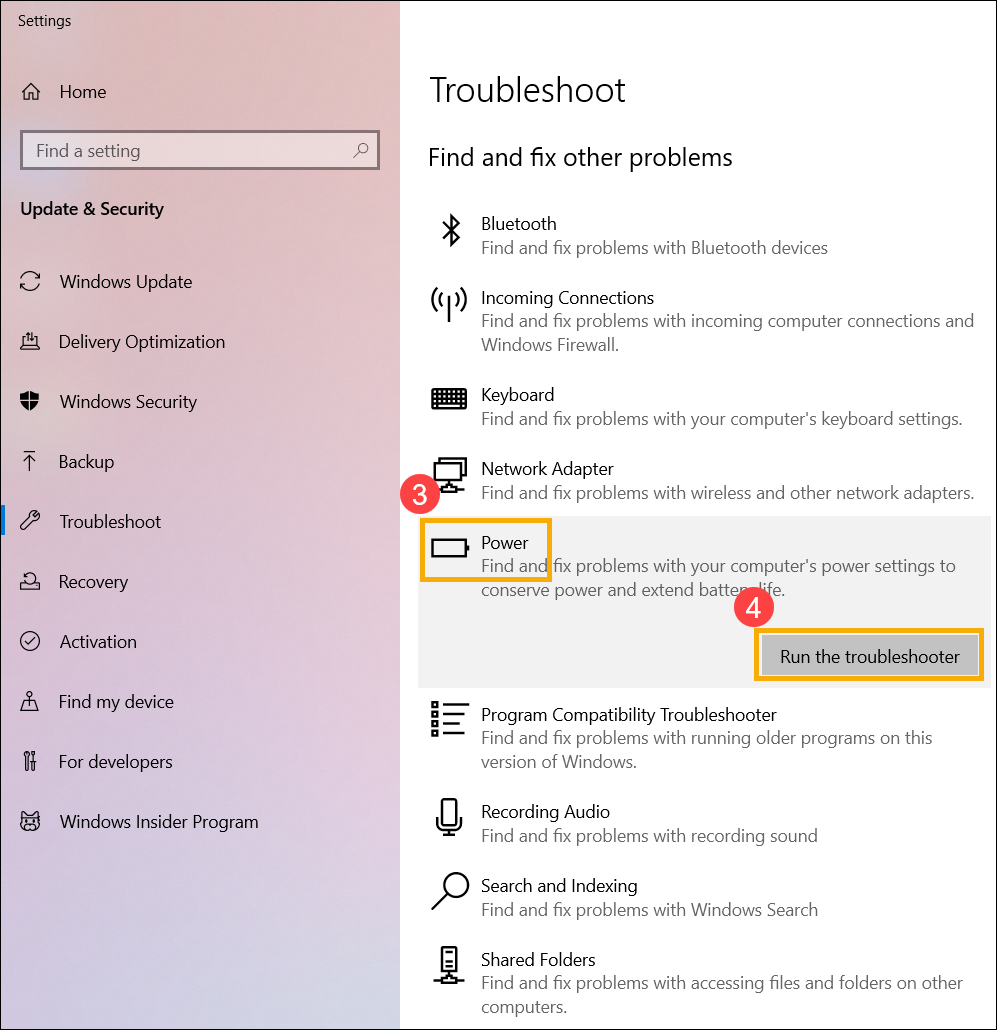
- Follow the on-screen instructions to complete the troubleshooting process.
- If the problem persists, please continue to the next chapter for troubleshooting.
Re-enabling Hibernate functionality via Command Prompt
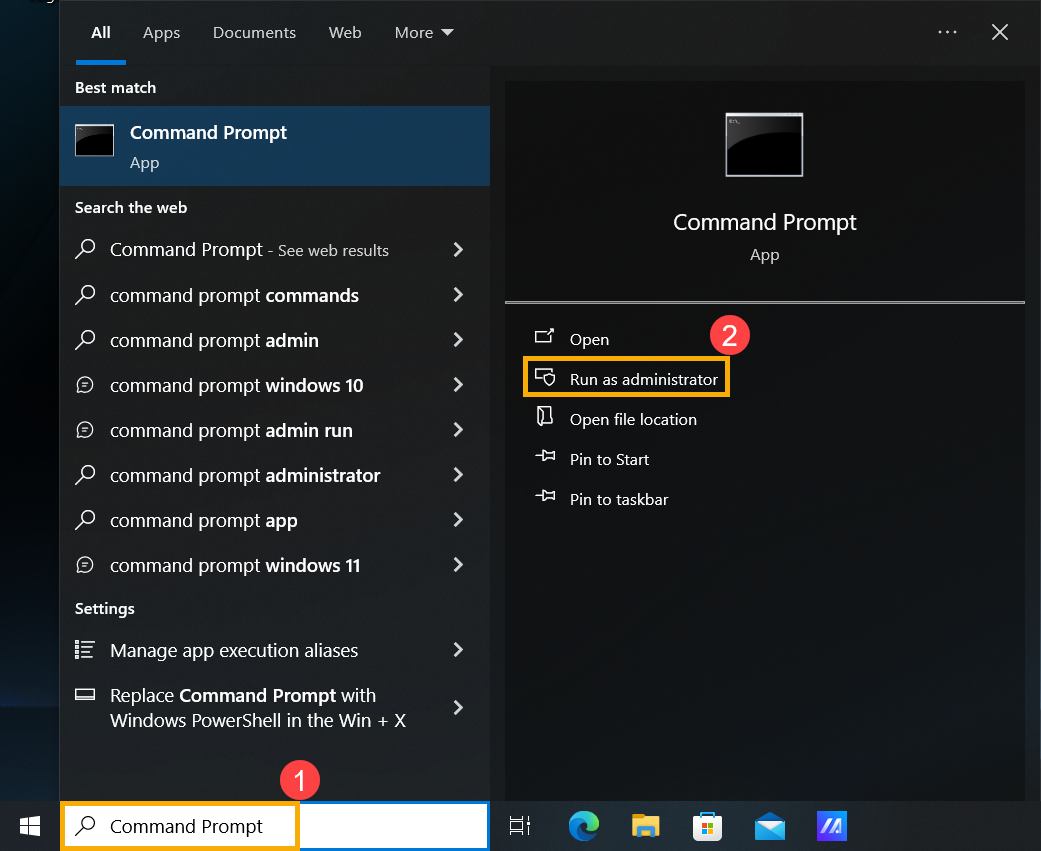
- Type and search [Command Prompt] in the Windows search bar①, then click [Run as administrator]②.
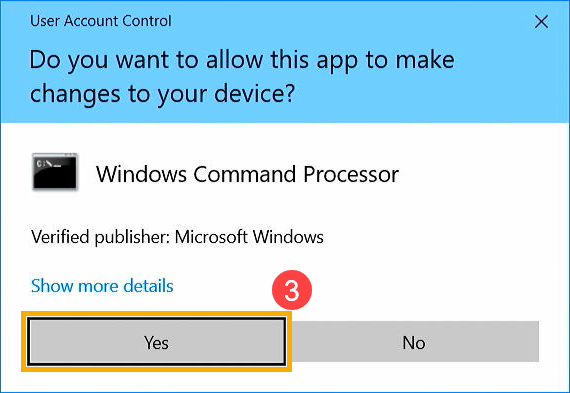
- When the User Account Control prompt appears, select [Yes]③.
- In the Command Prompt, type “powercfg.exe /hibernate off”④, and then press Enter to disable the hibernate function.
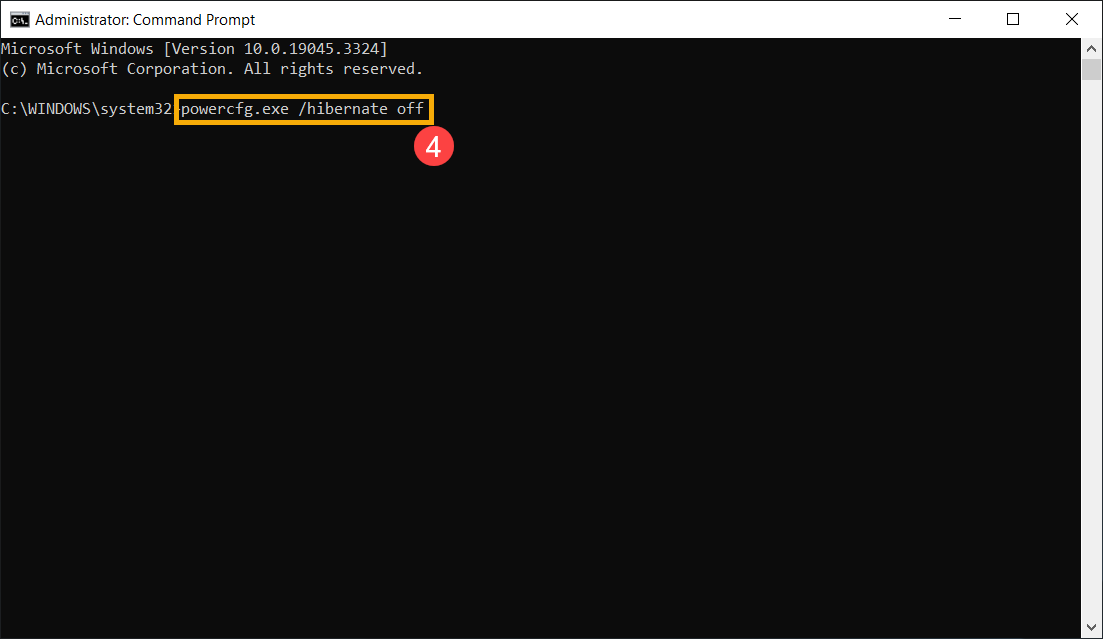
- After disabling hibernate, please restart your device.
- Open the Command Prompt application again with administrator, and in the Command Prompt window, type 「powercfg.exe /hibernate on」⑤, then press Enter to enable hibernation.
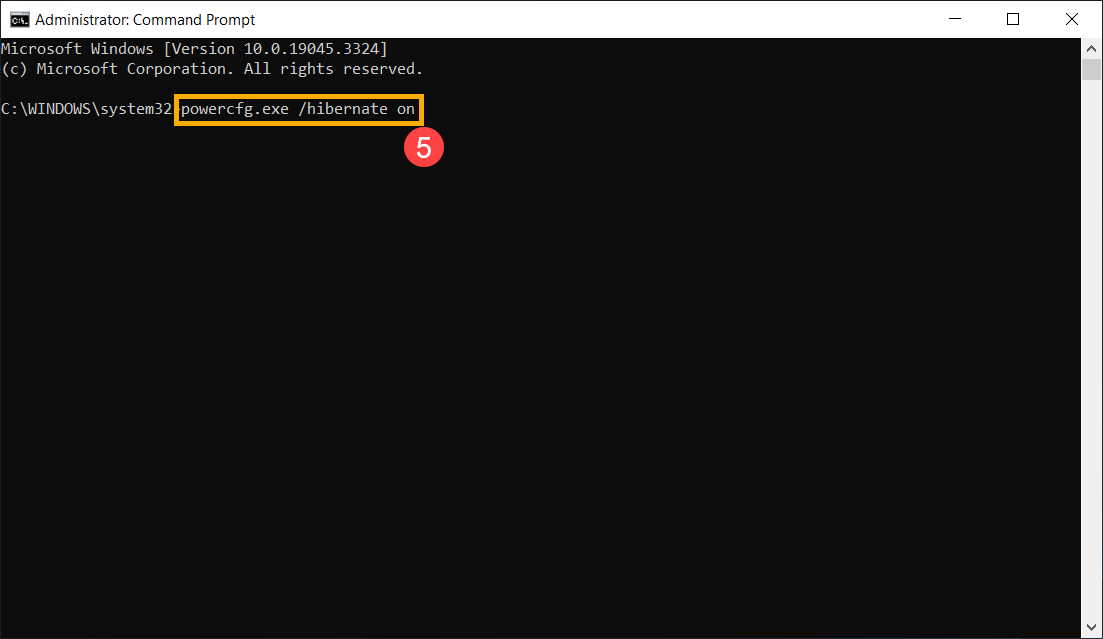
- If the issue persists, proceed with the next troubleshooting steps.
Restore the system from restore point
If the problem happens recently, and if you have ever created a restore point or there is an automatic system restore existed, try to restore the device to a point before the problem began to resolve the problem. Here you can learn more about How to use restore point to restore the system.
If the problem persists, please continue to the next chapter for troubleshooting.
Reset the system
If the problem persists after all troubleshooting steps are completed. Please backup your personal files, then reset the device to back to its original configuration. Here you can learn more about How to reset the system.
If your issue remains unresolved, please contact ASUS Customer Service for further assistance.
Notice
Above information might be partly or entirely quoted from exterior websites or sources. please refer to the information based on the source that we noted. Please directly contact or inquire the sources if there is any further question and note that ASUS is neither relevant nor responsible for its content/service.
This information may not suitable for all the products from the same category/series. Some of the screen shots and operations could be different from the software versions.
ASUS provides the above information for reference only. If you have any questions about the content, please contact the above product vendor directly. Please note that ASUS is not responsible for the content or service provided by the above product vendor.