Your Microsoft account links to all Microsoft applications and services. If you cannot access your Microsoft account or log in to Windows using a PIN, please refer to this article to assist you in resolving the issue.
If you've forgotten your Microsoft account email address, or you've logged in and received the error message That Microsoft account does not exist, it is recommended that you follow these steps to help you find your username.
For the protection of your account, Microsoft has strict policies on how our advocates can help you with your account. Microsoft Support advocates are unable to provide account information without proper validation, but there are places you can look within the products themselves.
Have you ever set up an alternate email address for the account you want to sign in, such as @outlook.com, @gmail.com, or @live.com? If so, try that.
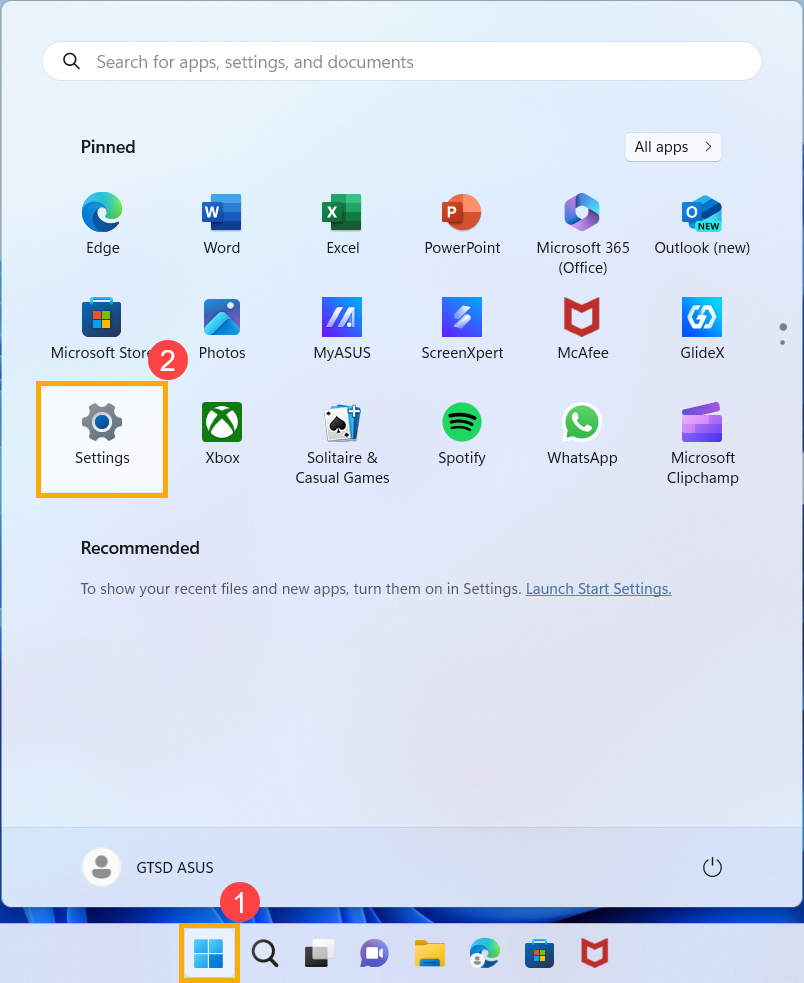
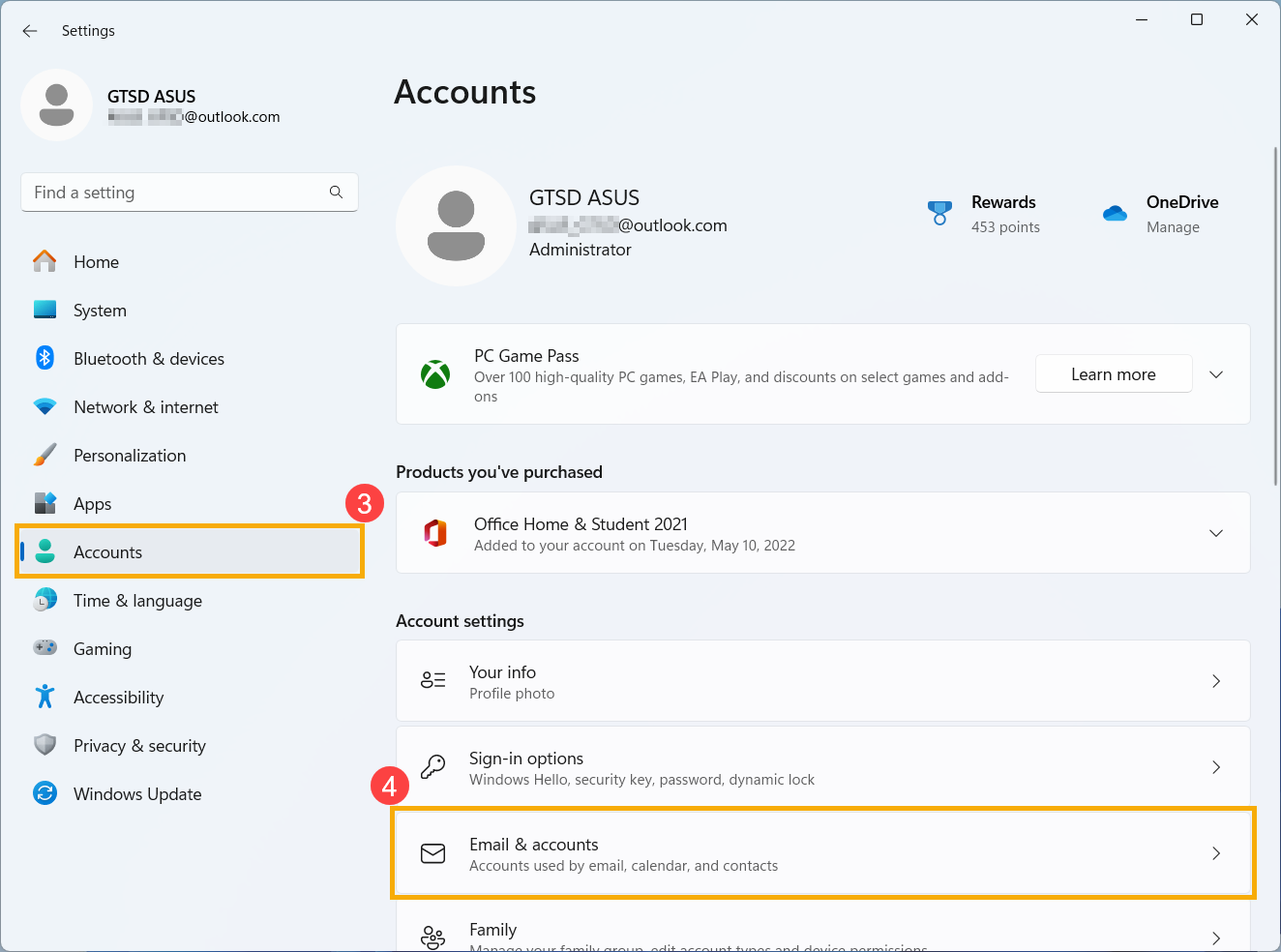
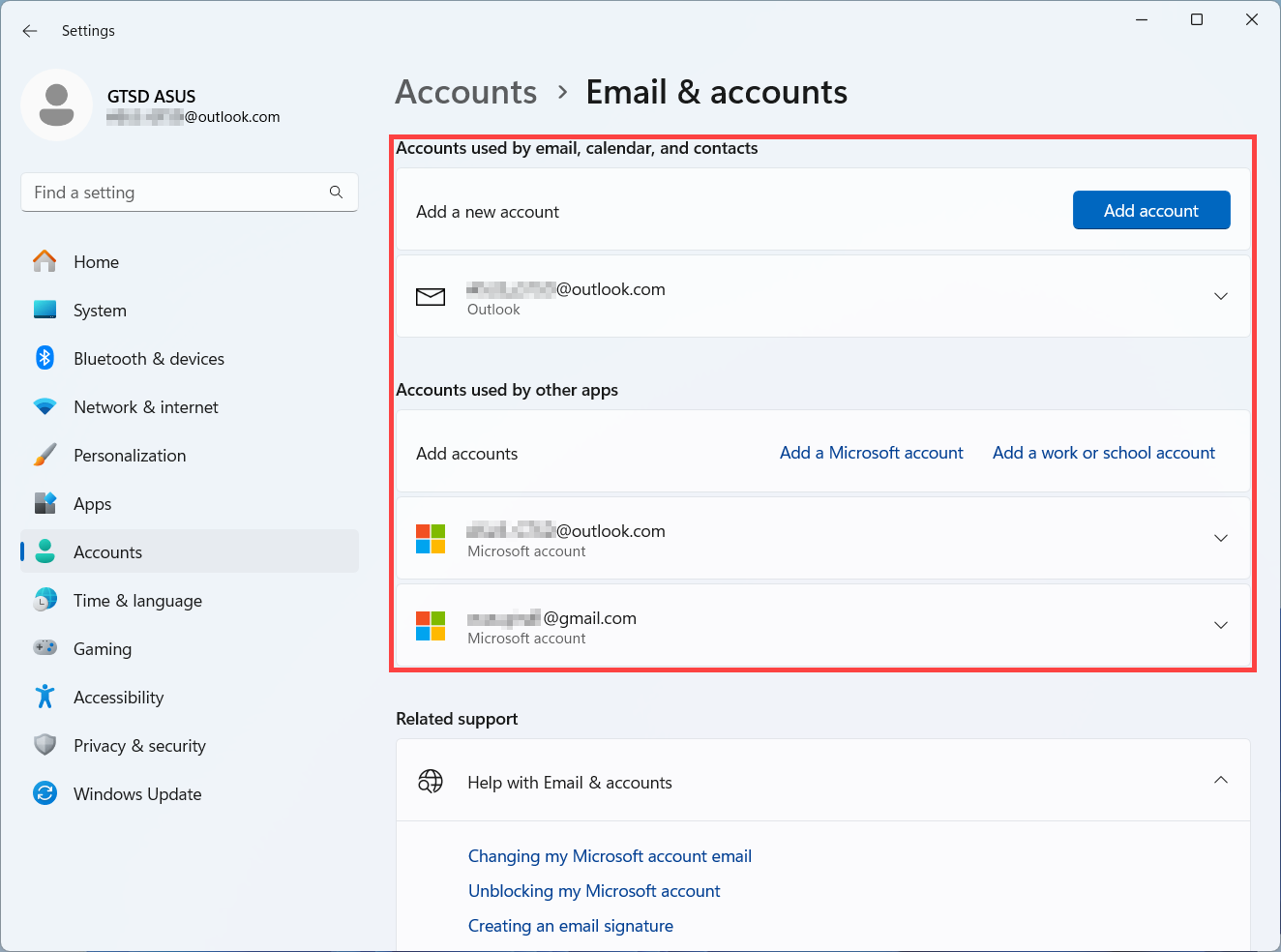
Windows Devices From your logged-in Windows device, click on the [Start] icon in the taskbar①, then click [Settings]②. In the Windows Settings window, click [Accounts]③, then click [Email & accounts]④. Below Email & accounts, you'll see the username associated with your device.
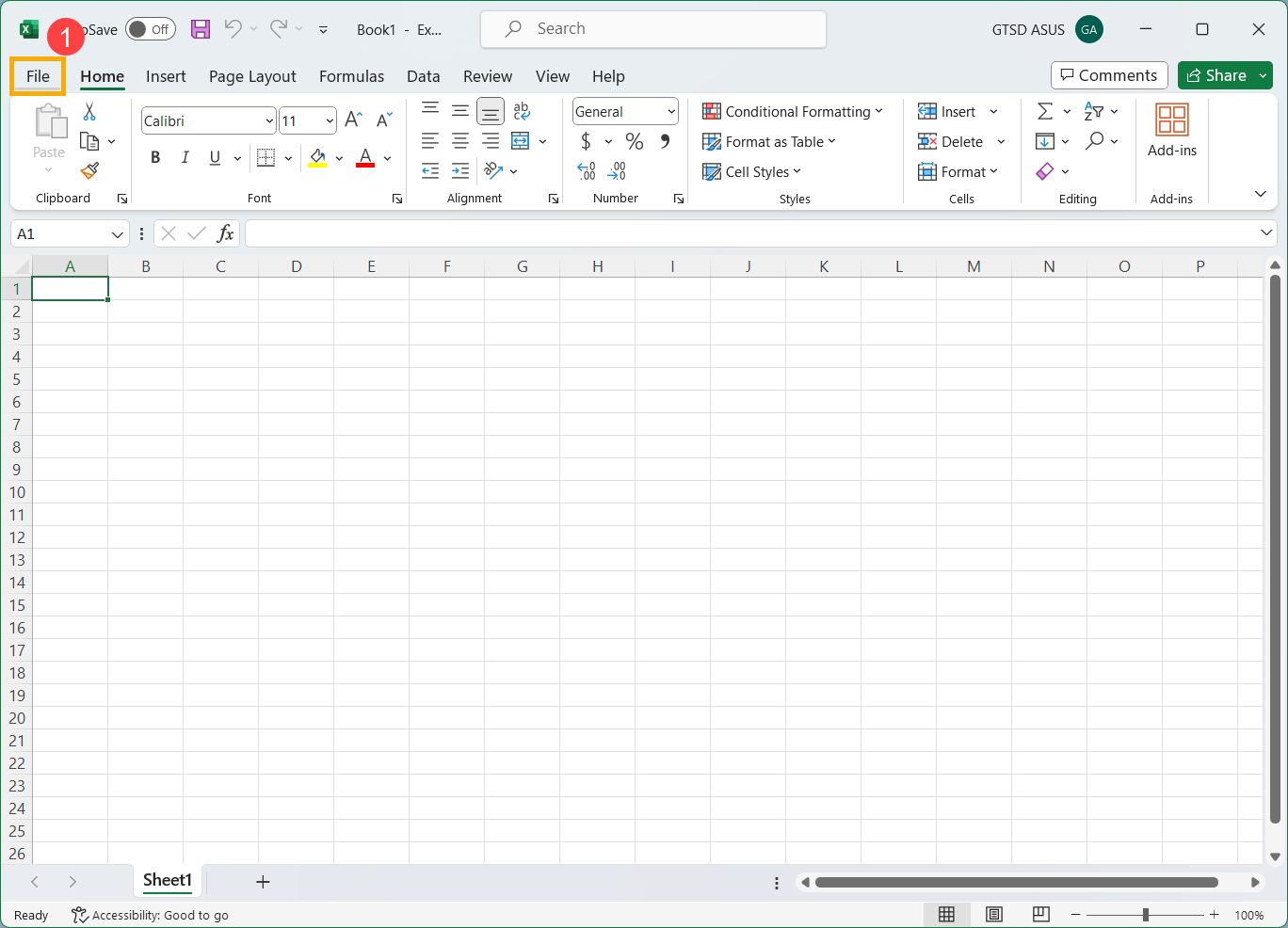
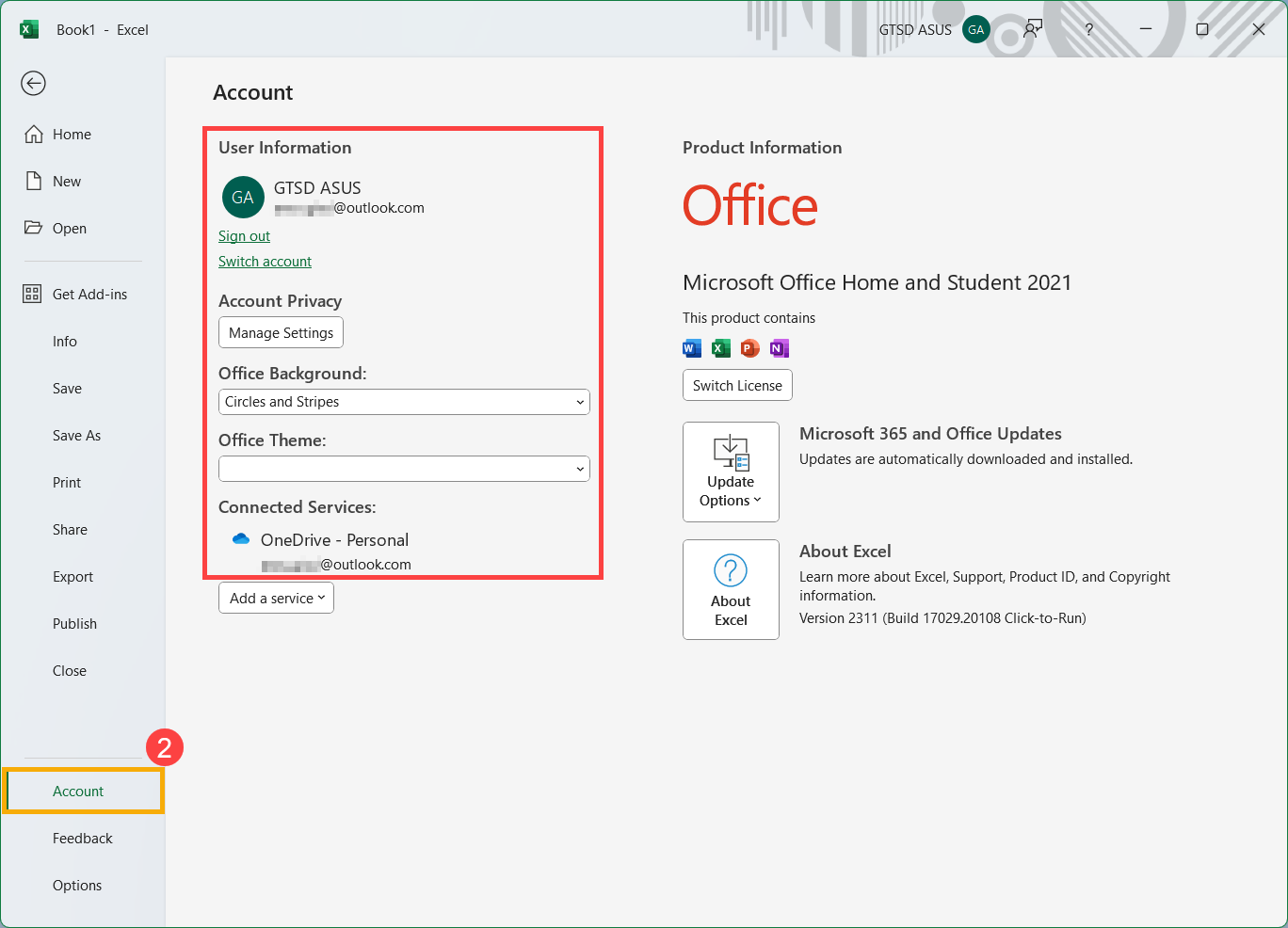
Office Applications Microsoft 365 or Office 2016 and newer versions: Open Office applications like Word or Excel. After opening the Office application, click [File]①. Click [Account]②. Under user information, you'll find the username belonging to and associated with your account.
If you still couldn't find your username by checking the products or services above, move on to the next step to determine if your account may be closed.
You might not be able to sign into your account because it's closed or deleted.
You closed your account: If you closed your Microsoft account, you have 60 days from that closure to sign in and reopen it. After that 60 days, your account and data expire.
Your account was closed because of inactivity: If you haven't signed in to your account for a long time, it might expire due to inactivity, according to the following schedule.
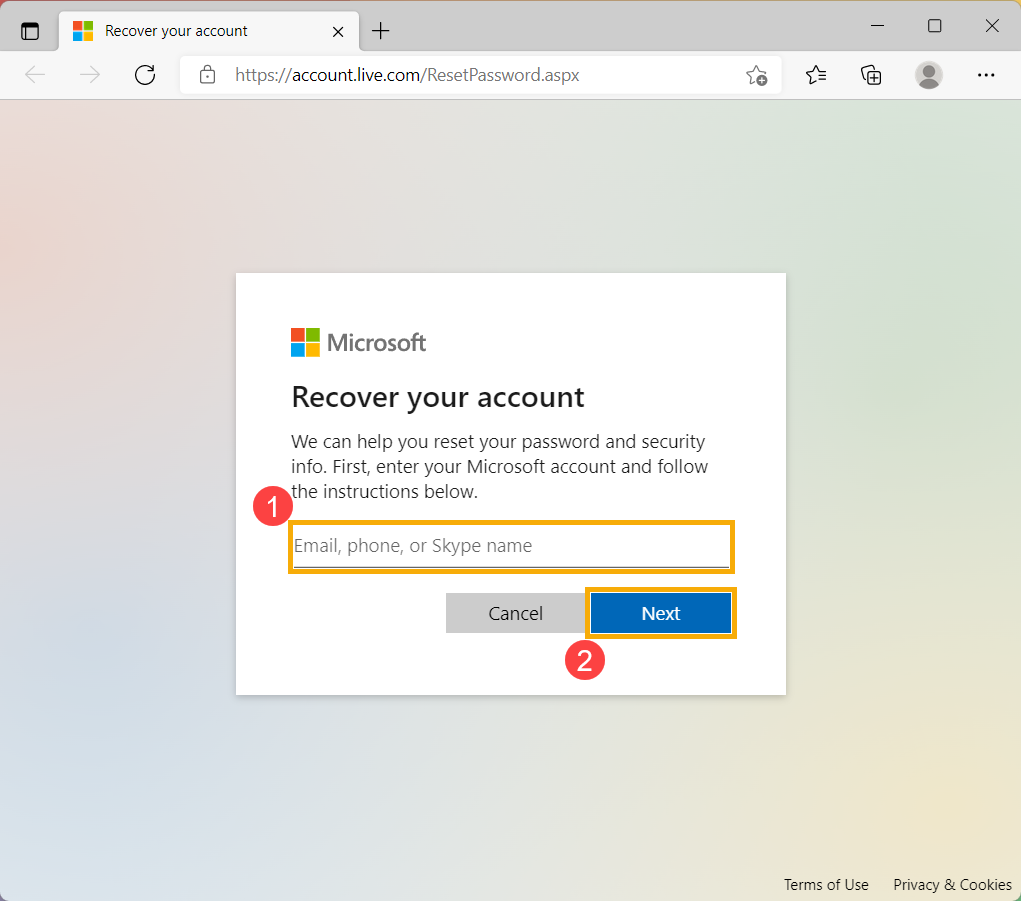
Enter your Microsoft account①, such as email, phone, or Skype name, and click [Next]②.
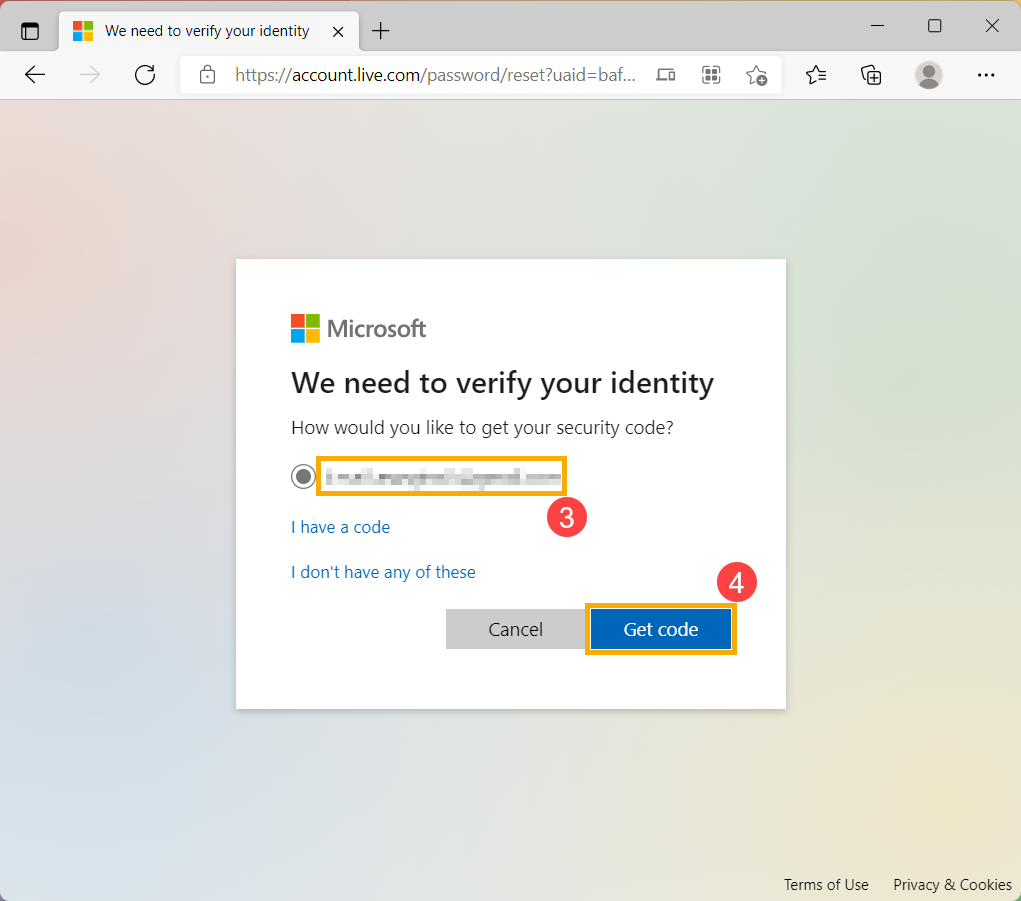
For your protection, Microsoft must verify your identity before you can proceed with resetting your password. Choose how you want to receive the verification code③, such as email or text, and click [Get code]④.
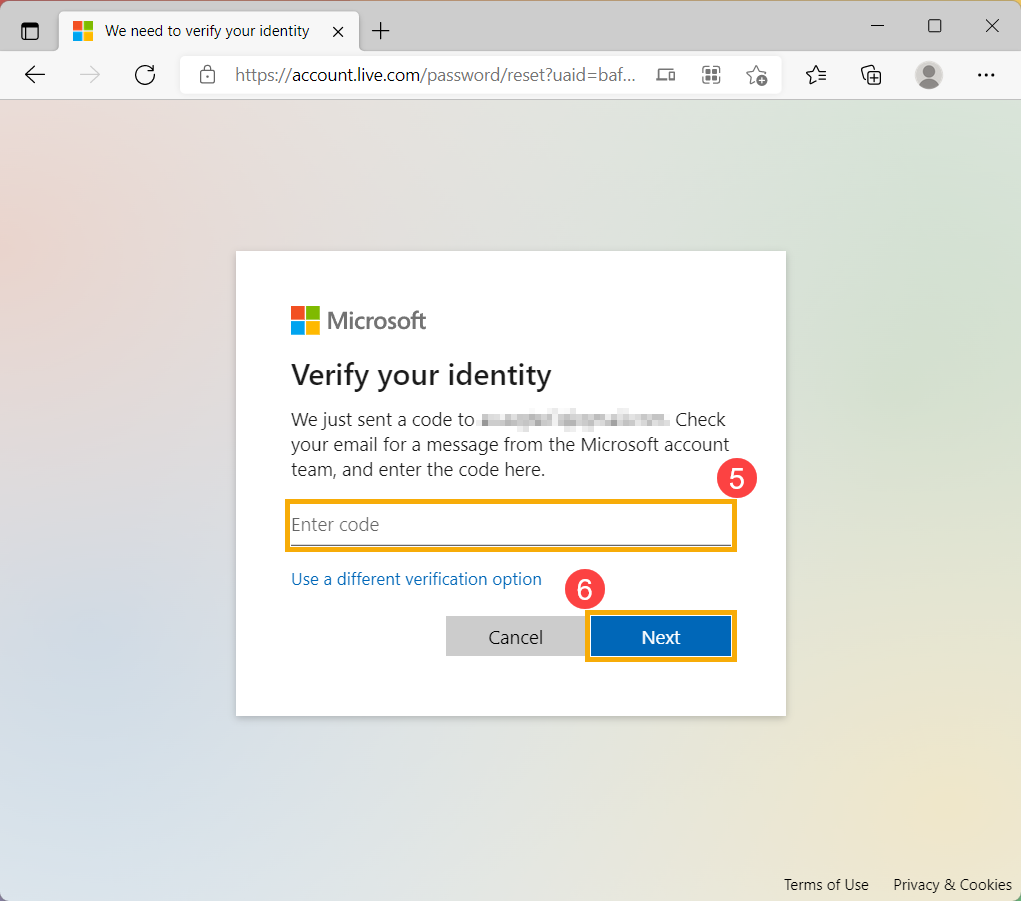
Microsoft will send a verification code to the email or phone number you selected. Go to the recovery phone or email for where you expect to receive the code. Enter the verification code⑤ and click [Next]⑥.
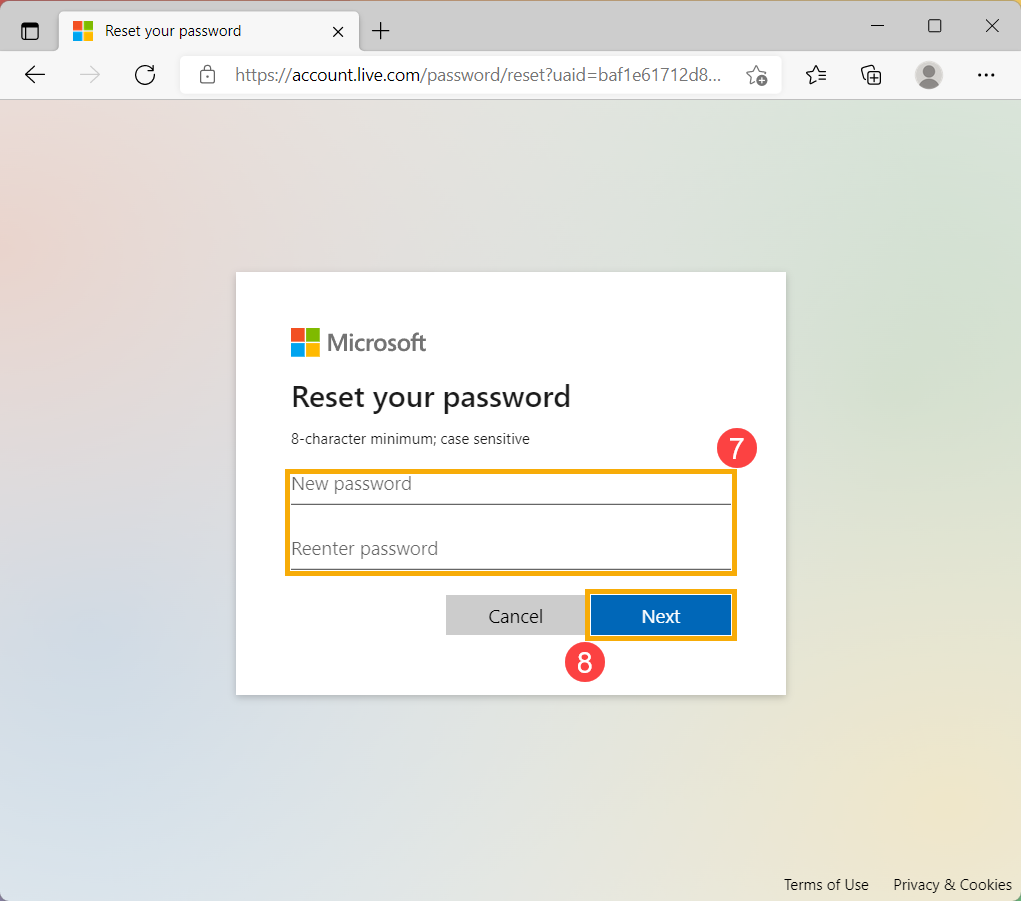
After confirming the verification code, set your new password⑦ and click [Next]⑧.
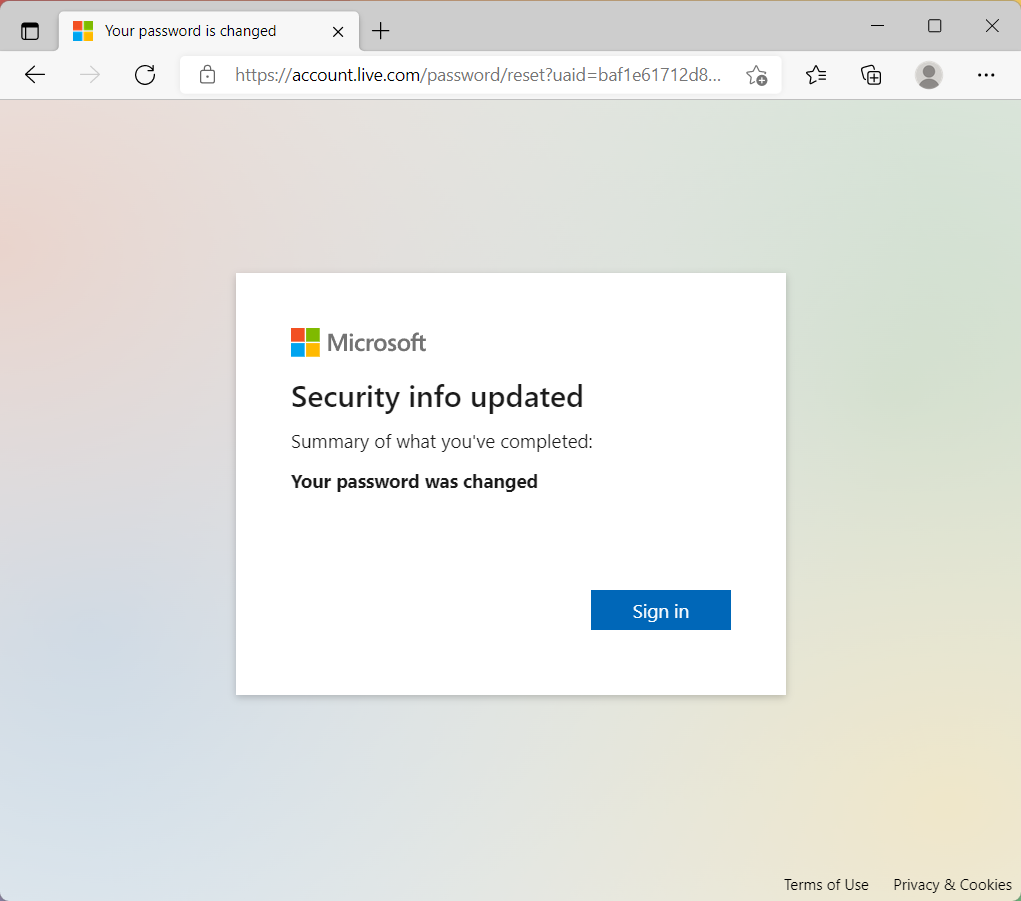
The password reset is complete.
If the password reset fails, try the following methods:
If you tried to sign in to your account and received a message that it's been locked, it's because activity associated with your account might violate Microsoft’s Terms of Use. Refer to Microsoft's official support instructions: How to unlock your Microsoft account.
If you have enabled two-step verification. After you turn on two-step verification or set up the Authenticator app, you may run into issues if you use apps or older devices (like Windows Phone 8 and Xbox 360) that don't support two-step verification. If you have two-step verification turned on and an app isn't prompting you to enter a security code when you sign in, you may be able to sign in with an app password instead. An app password is a long, randomly generated password that you provide only once instead of your regular password when signing in to an app or device that doesn't support two-step verification. You only need to create an app password if you have two-step verification turned on and are using an app that doesn't support it. For more information, refer to Microsoft's official support instructions: App passwords and two-step verification.
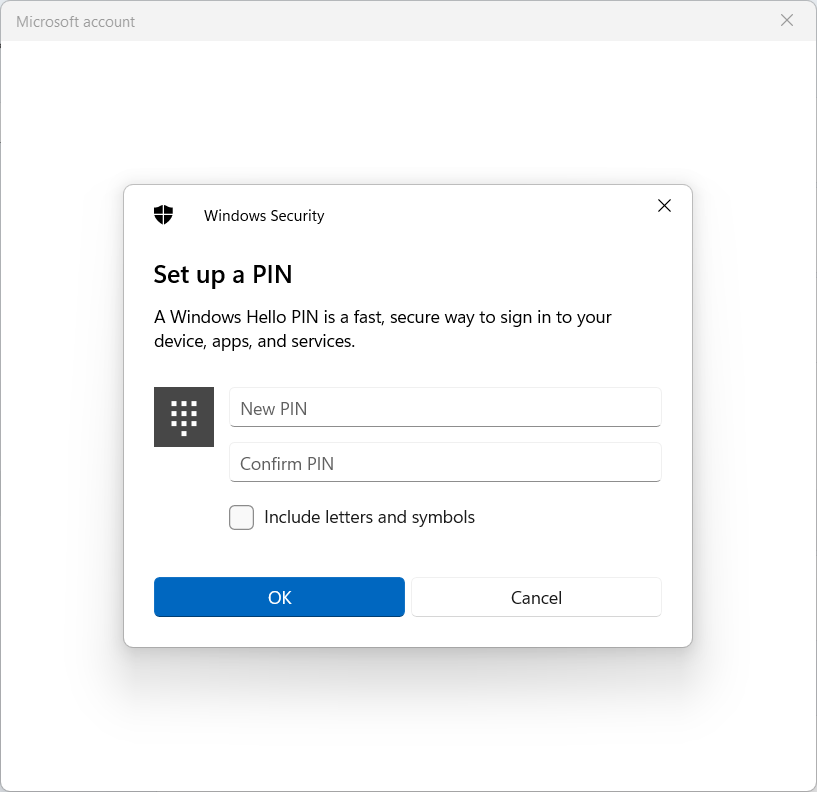
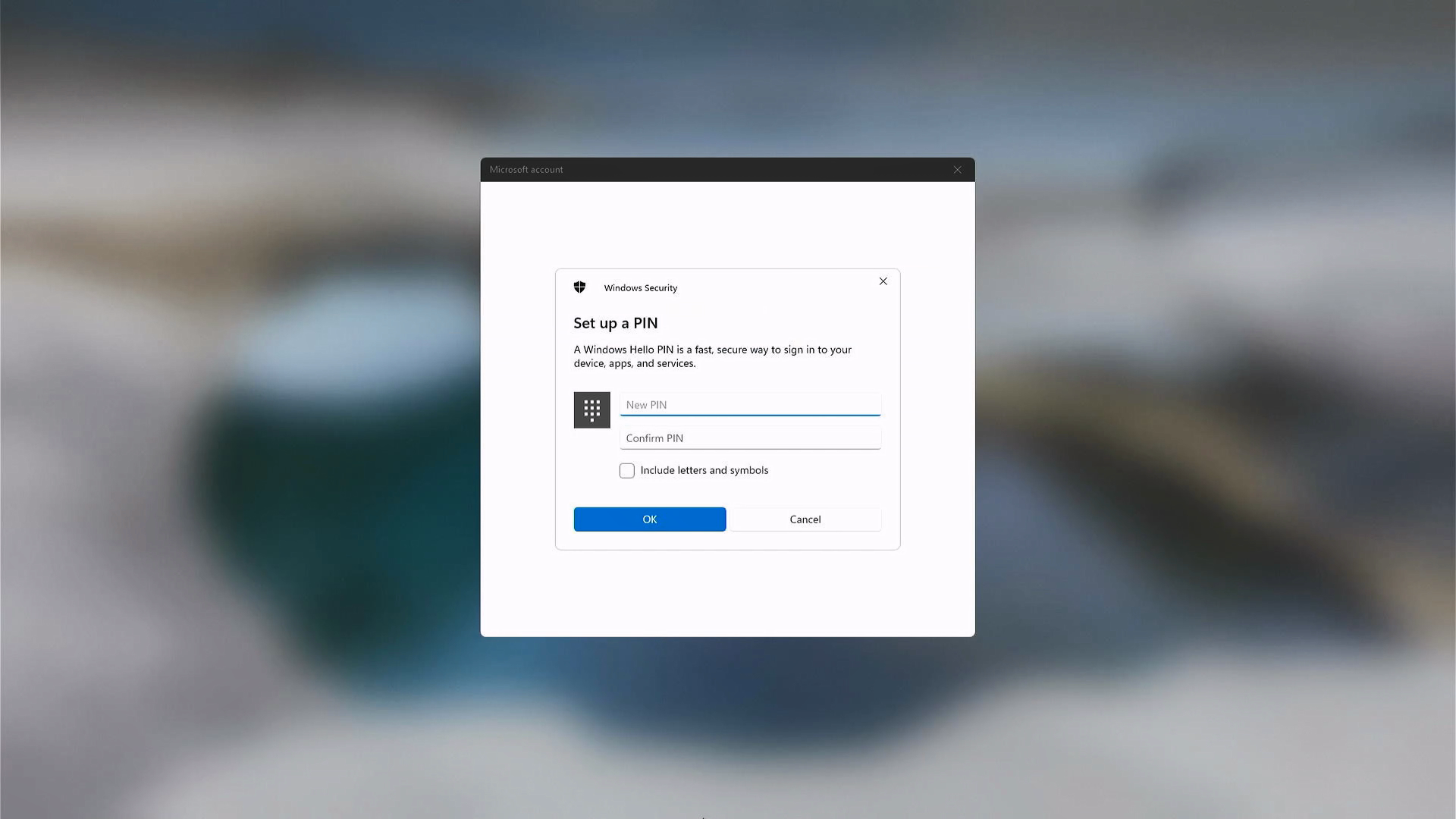
If you have forgotten your PIN and signed in to your machine using a password, fingerprint, security key, or other means, you can refer to the following steps to get a new PIN.
Make sure you're connected to the internet, so the change syncs to your Microsoft account.
Click on the [Start] icon in the taskbar①, then click [Settings]②.
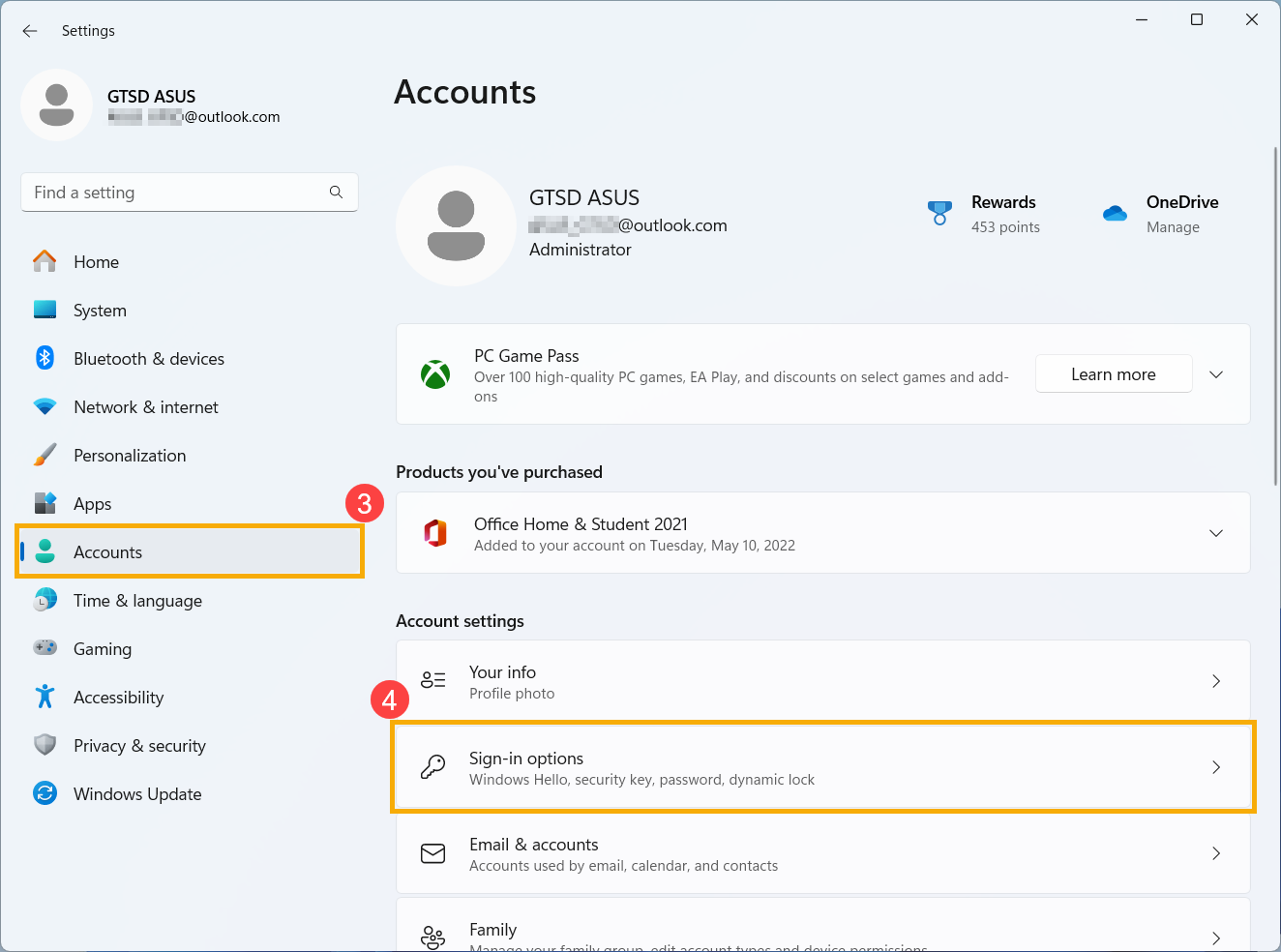
In the Windows Settings window, click [Accounts]③, then click [Sign-in options]④.
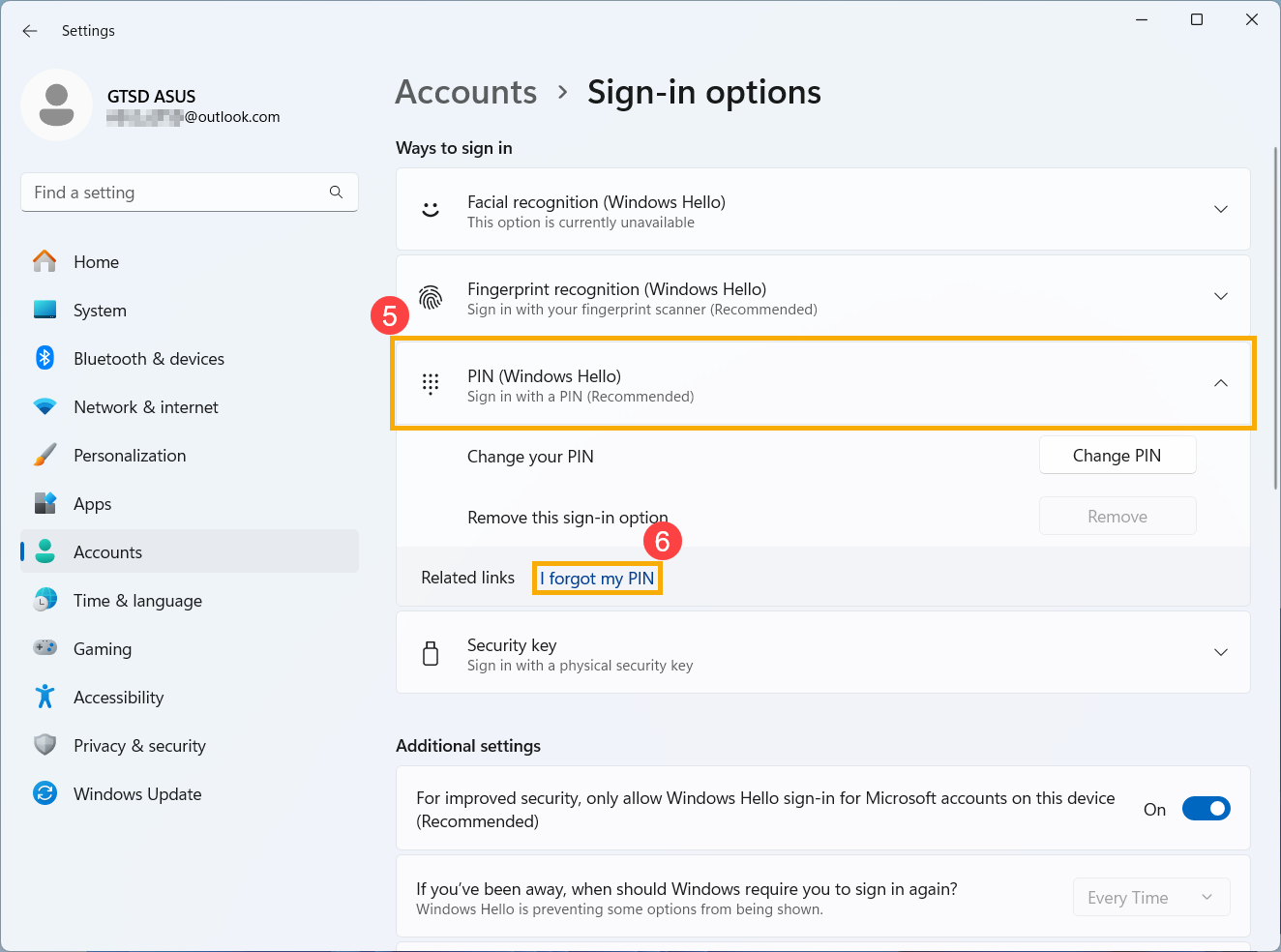
Select [PIN (Windows Hello)]⑤ to expand more options, then click [I forgot my PIN]⑥.
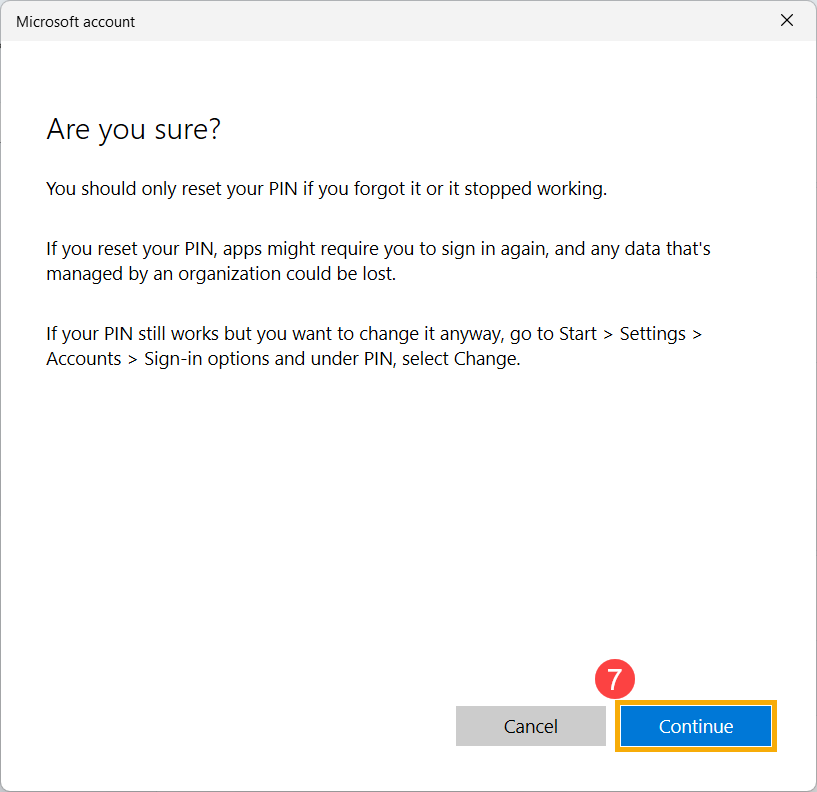
After the window confirming whether to reset the PIN appears, click [Continue]⑦.
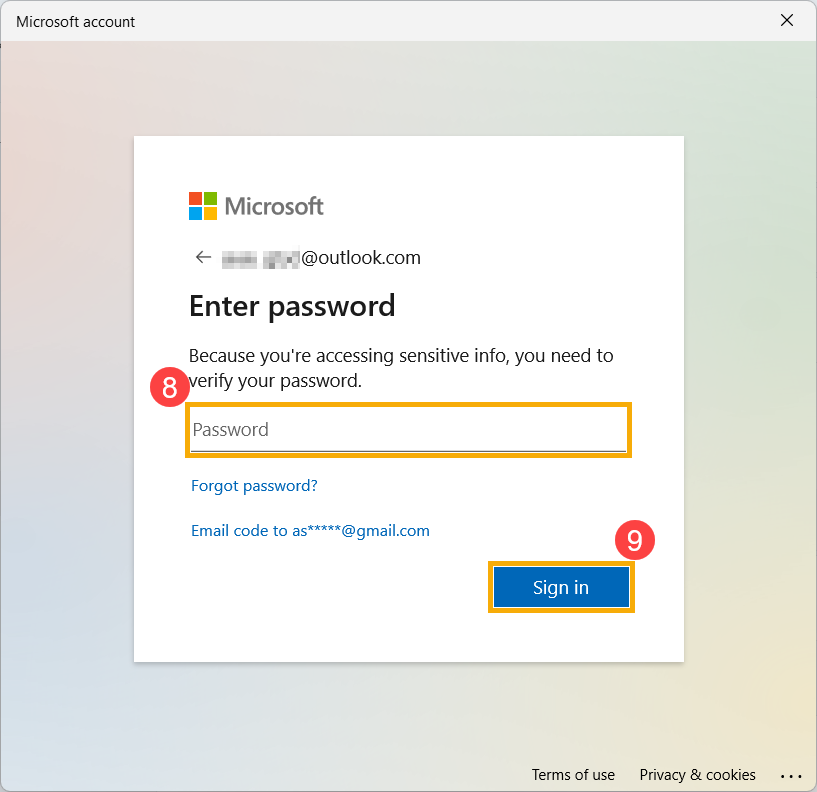
Enter your Microsoft account password⑧ and click [Sign in]⑨.
If you aren't signed in to your device and you want to reset a PIN, you can try the following method.
On the Windows login screen, click [I forgot my PIN]①. Note: If you don't see I forgot my PIN, select Sign-in options and then select Enter your password to log in to the device using your Microsoft account password.
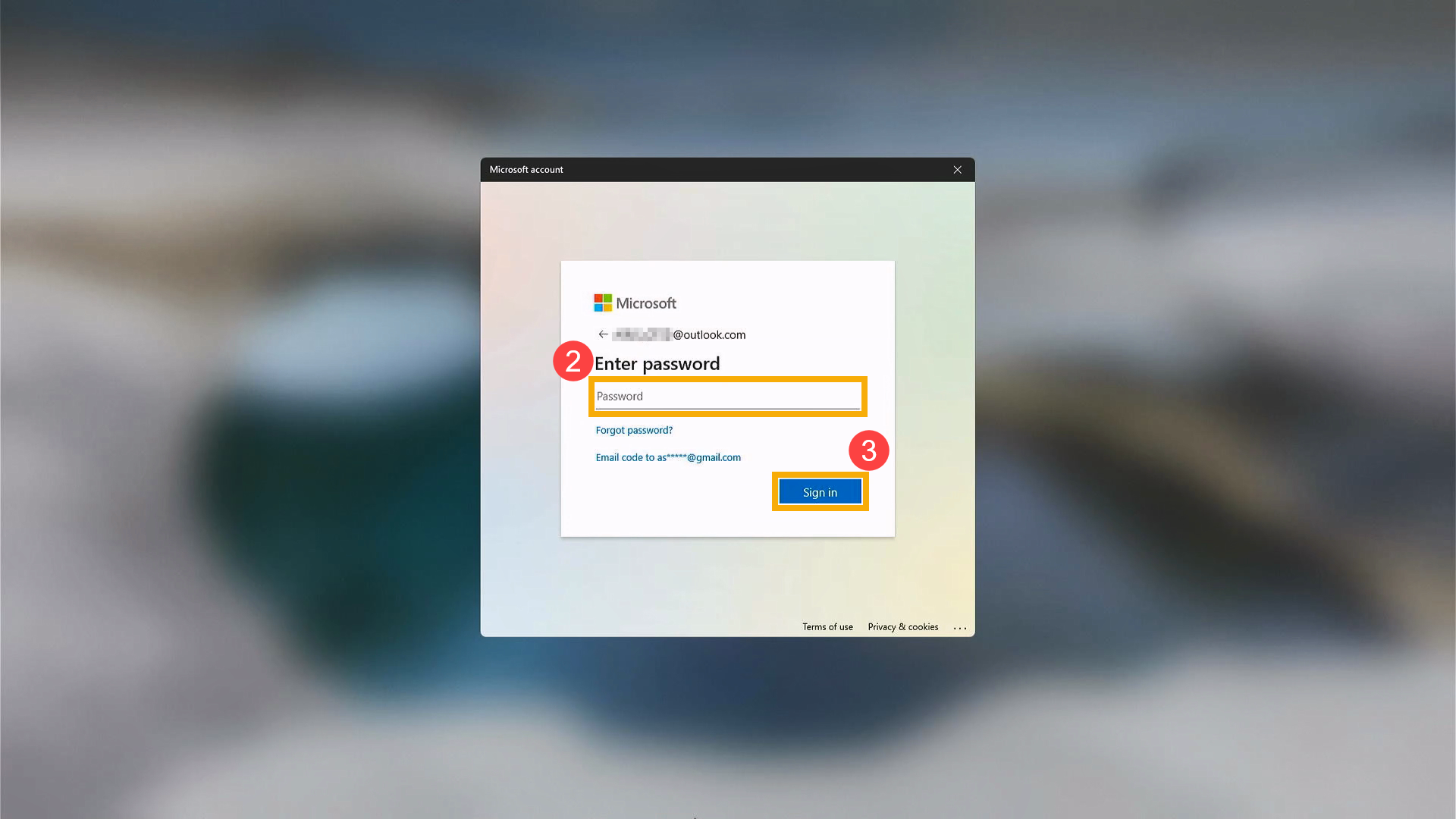
Enter your Microsoft account password② and click [Sign in]③.
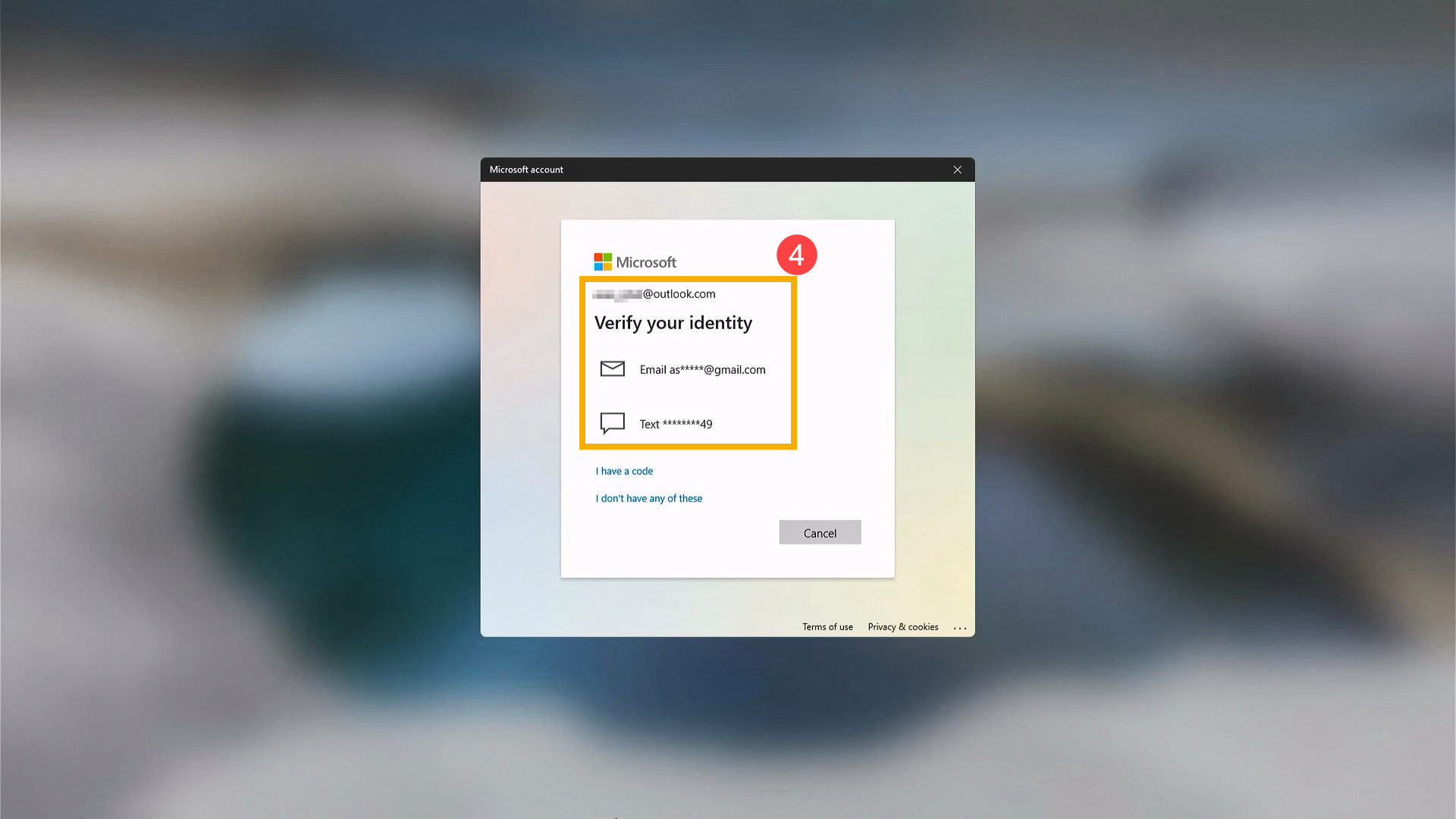
For your protection, Microsoft must verify your identity before you can proceed with resetting your PIN. Choose how you want to receive the verification code④.
Depending on the contact method you chose, retype the first part of the email address or the last four digits of the phone number hinted at in the previous window⑤, then click [Send code]⑥.
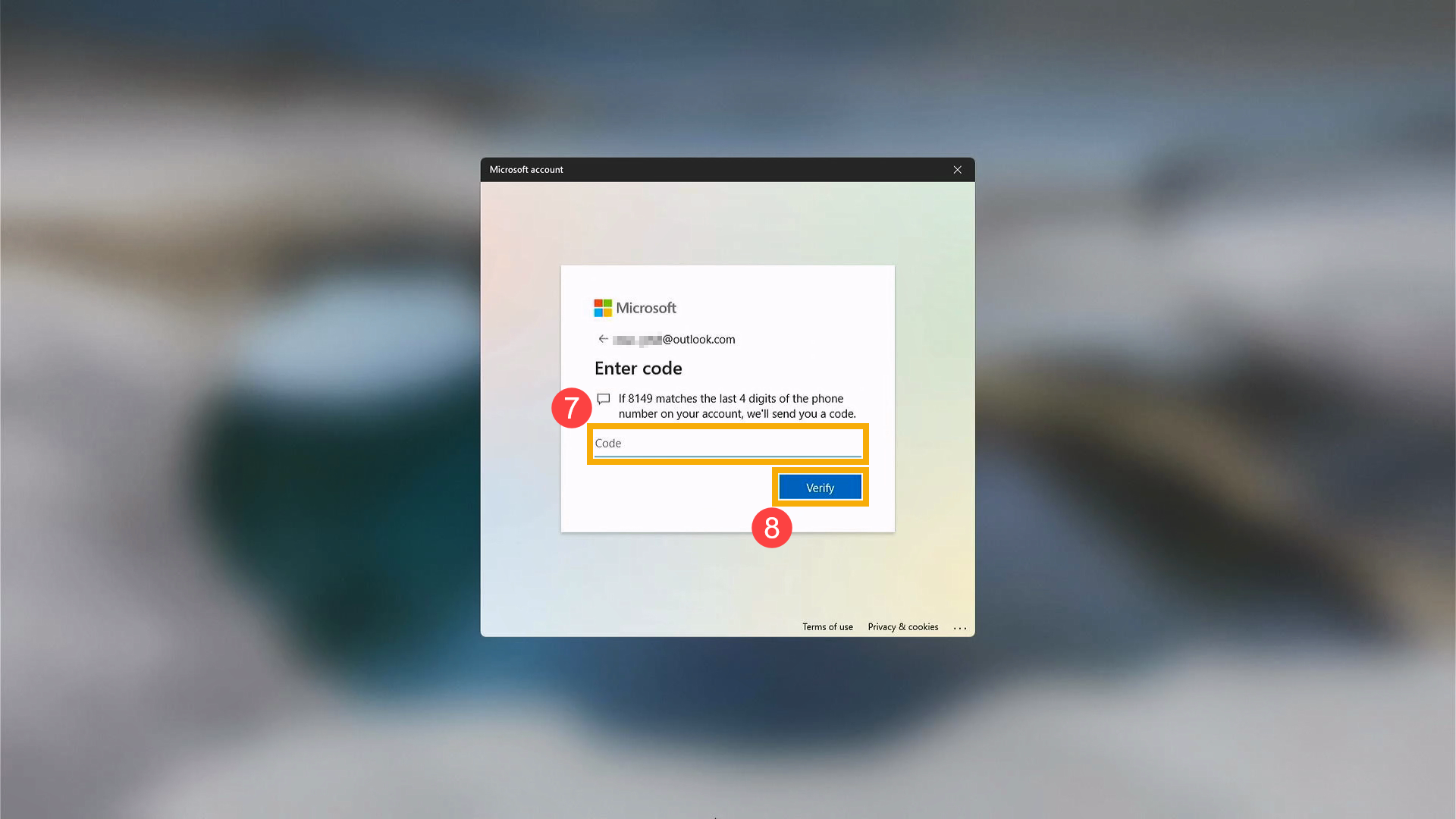
Microsoft will send a verification code to the email or phone number you selected. Go to the recovery phone or email for where you expect to receive the code. Enter the verification code⑦ and click [Verify]⑧.
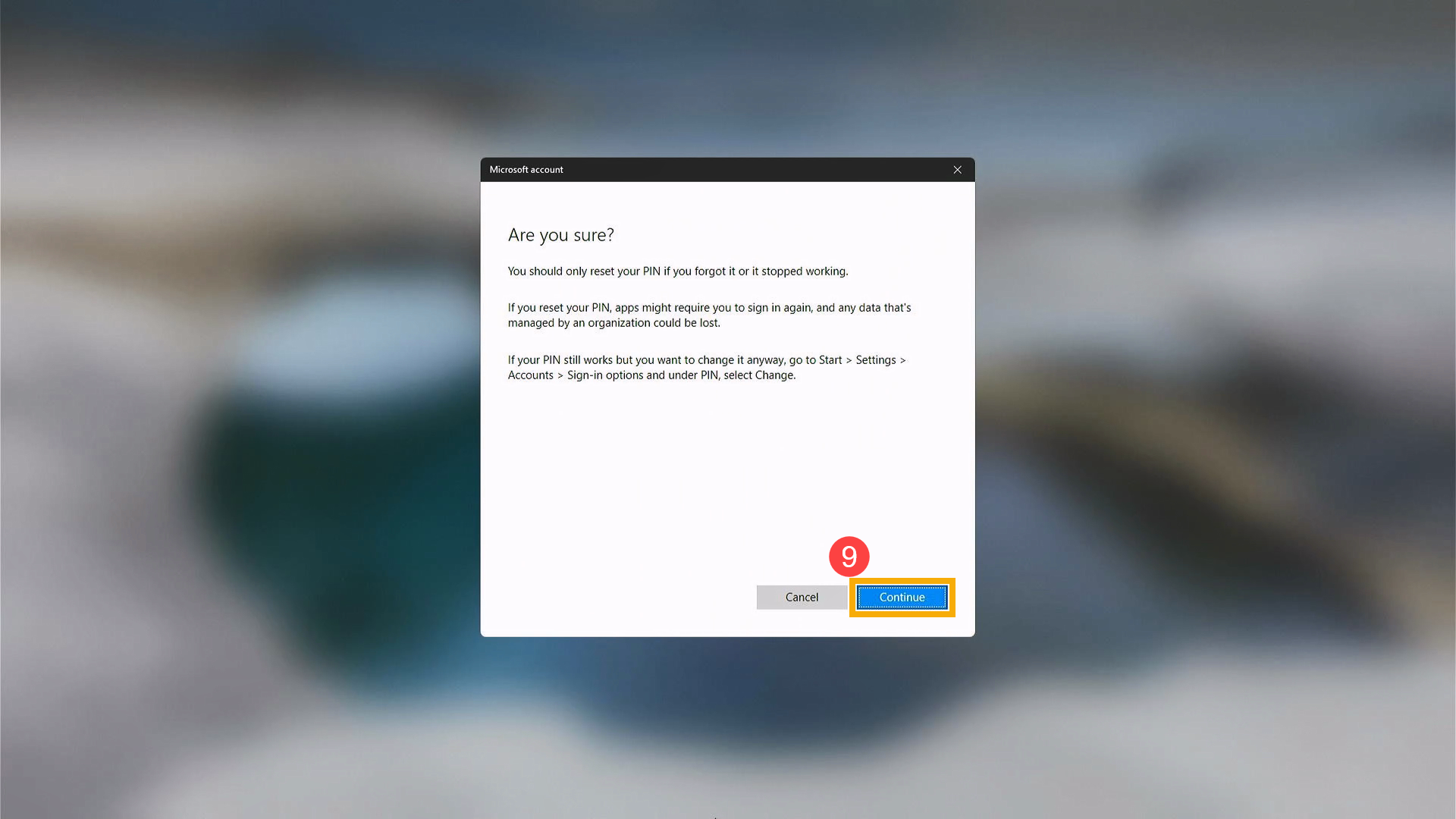
After the window confirming whether to reset the PIN appears, click [Continue]⑨.
A1: If you enter an incorrect password multiple times when signing in to Windows, the system may temporarily lock your account. This is a built-in Windows security mechanism designed to prevent unauthorized access through repeated password attempts.
If your account becomes locked, we recommend the following actions:
For personal computers
Wait for a period of time before attempting to sign in again (the exact duration depends on the system’s security settings).
If there is another account on the computer with administrator privileges, ask the administrator to check the account status and assist if necessary.
For company-, school-, or enterprise-issued computers
These devices are typically governed by centralized security policies set by the system administration team.
Users are usually unable to unlock their accounts on their own.
Please contact your organization’s IT department or system administrator for assistance.
Please note that account lockout conditions and recovery procedures may vary depending on the usage environment. Actual behavior is determined by the security policies applied to the computer. The Windows Account Lockout Policy is an official security feature provided by Microsoft. For detailed mechanisms and explanations, please refer to Microsoft’s official documentation: https://learn.microsoft.com/windows/security/threat-protection/security-policy-settings/account-lockout-policy.
The above information is from Microsoft's account instructions. If your Microsoft account issues remain unresolved, please contact Microsoft for further assistance.
Notice
Above information might be partly or entirely quoted from exterior websites or sources. please refer to the information based on the source that we noted. Please directly contact or inquire the sources if there is any further question and note that ASUS is neither relevant nor responsible for its content/service. This information may not suitable for all the products from the same category/series. Some of the screen shots and operations could be different from the software versions.
ASUS provides the above information for reference only. If you have any questions about the content, please contact the above product vendor directly. Please note that ASUS is not responsible for the content or service provided by the above product vendor.


 in the taskbar